Configuring Your Power BI Connector to DataHub
Now that you have created a DataHub-specific Microsoft Entra application with the relevant access to Power BI in the prior step, it's now time to set up a connection via the DataHub UI.
Configure Secrets
- Within DataHub, navigate to the Ingestion tab in the top, right corner of your screen
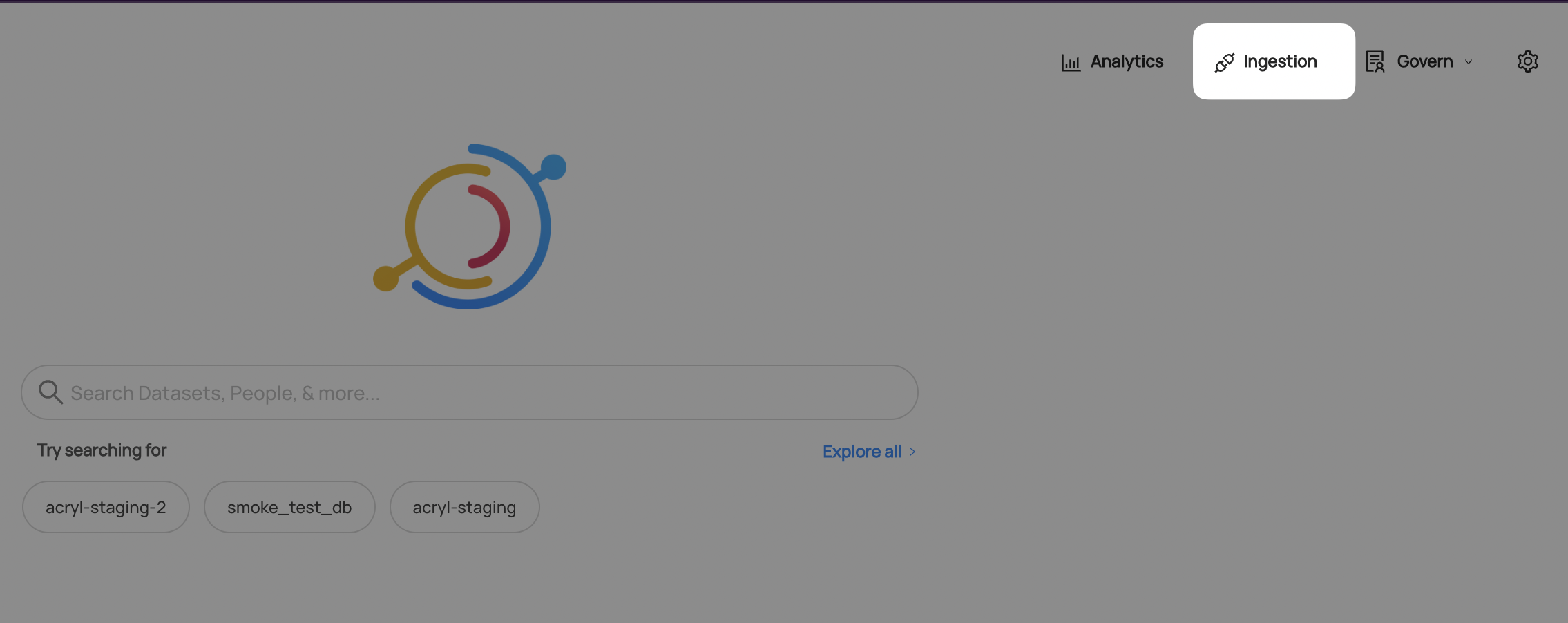
If you do not see the Ingestion tab, please contact your DataHub admin to grant you the correct permissions
- Navigate to the Secrets tab and click Create new secret.
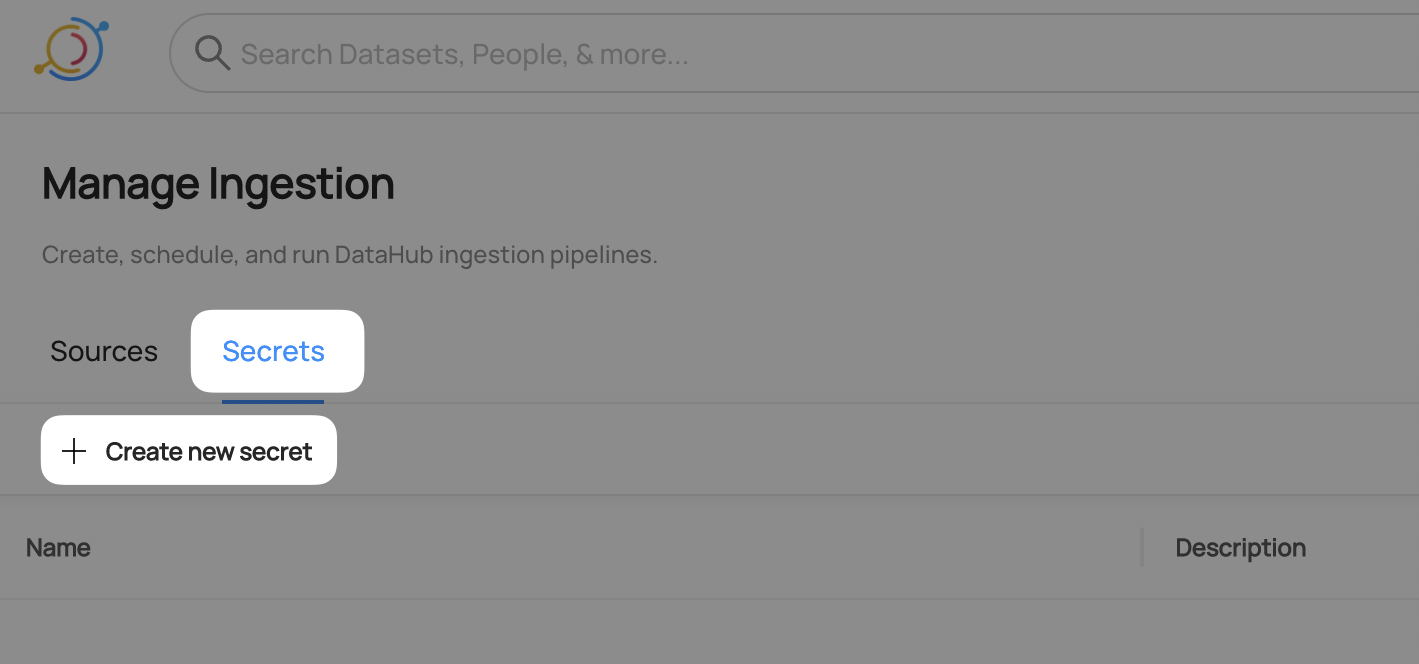
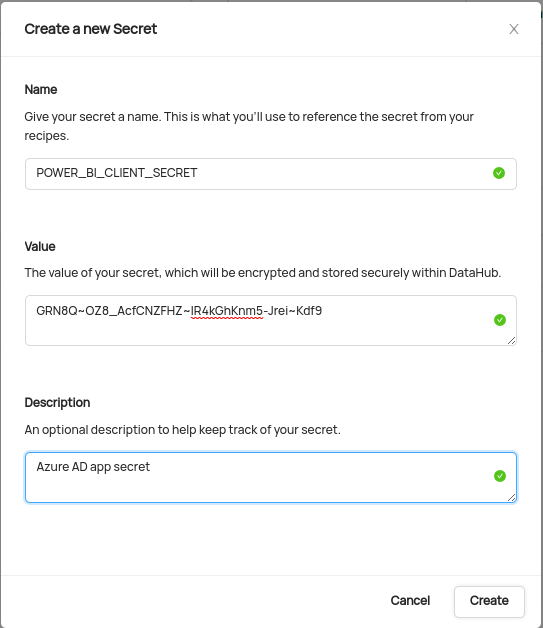
- Create a secret to store the Entra app's Client Secret value
This will securely store your client secret value.
- Enter a name like
POWER_BI_CLIENT_SECRET- we will use this later to refer to the client secret - Enter the client secret
- Optionally add a description
- Click Create
Configure Recipe
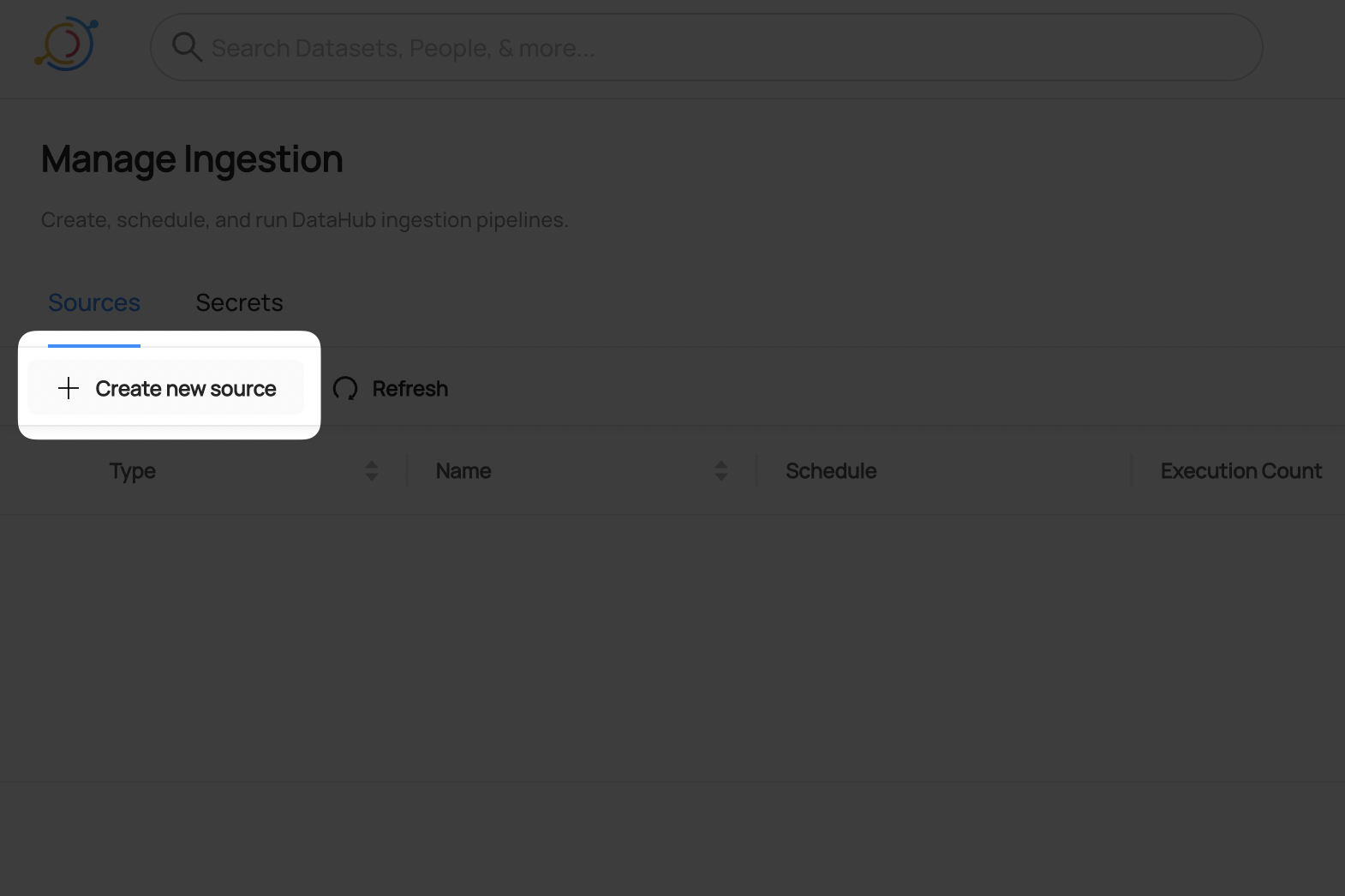
Navigate to the Sources tab and click Create new source
Choose Power BI
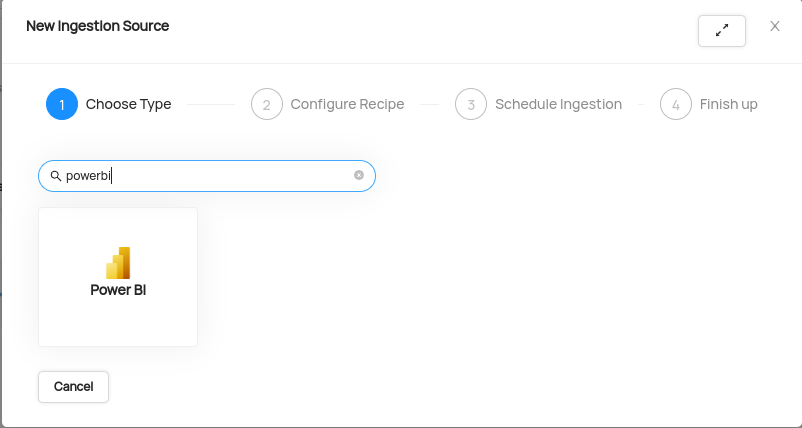
Enter details into the Power BI Recipe
You need to set minimum 3 field in the recipe:
a. tenant_id: Use the
Directory (tenant) IDfrom your Microsoft Entra application.b. client_id: Use the
Application (client) IDfrom your Microsoft Entra application.c. client_secret: Use the secret POWER_BI_CLIENT_SECRET with the format "${POWER_BI_CLIENT_SECRET}".
d. environment: (Optional) Specify the Power BI environment to connect to. Use 'commercial' for commercial Power BI (default) or 'government' for Power BI Government Community Cloud (GCC).
Optionally, use the workspace_id_pattern field to filter for specific workspaces.
config:
     ...
     workspace_id_pattern:
        allow:
          - "258829b1-82b1-4bdb-b9fb-6722c718bbd3"
Your recipe should look something like this:
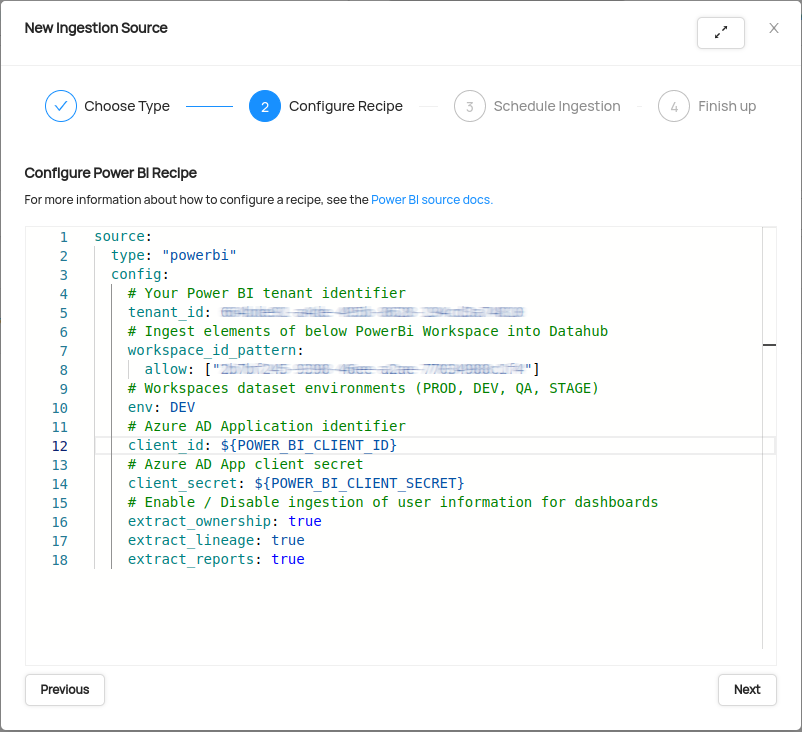
After completing the recipe, click Next.
Schedule Execution
Now it's time to schedule a recurring ingestion pipeline to regularly extract metadata from your Power BI instance.
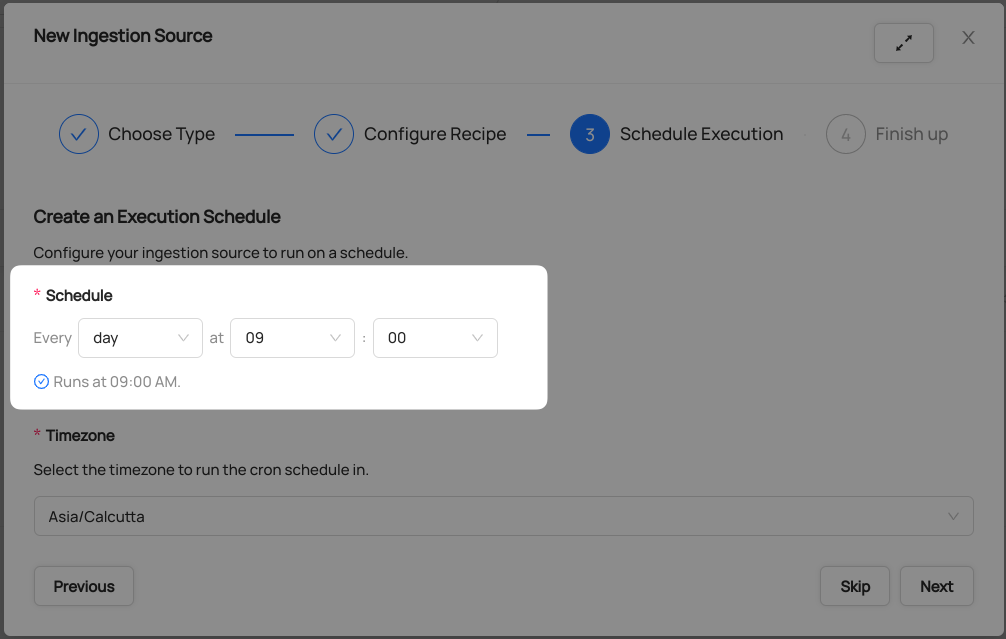
- Decide how regularly you want this ingestion to run-- day, month, year, hour, minute, etc. Select from the dropdown
Ensure you've configured your correct timezone
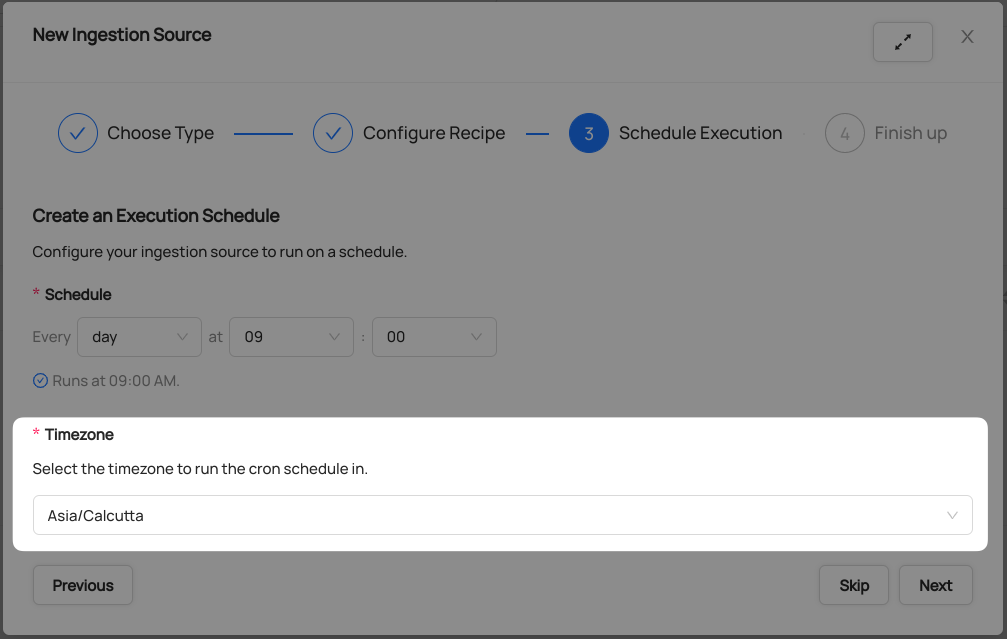
Click Next when you are done
Finish Up
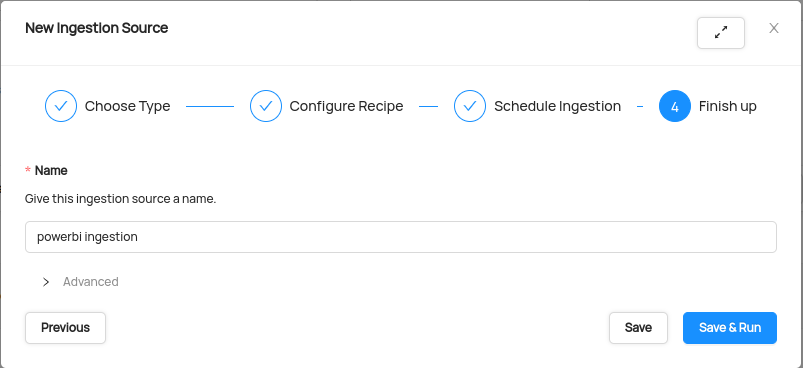
- Name your ingestion source, then click Save and Run
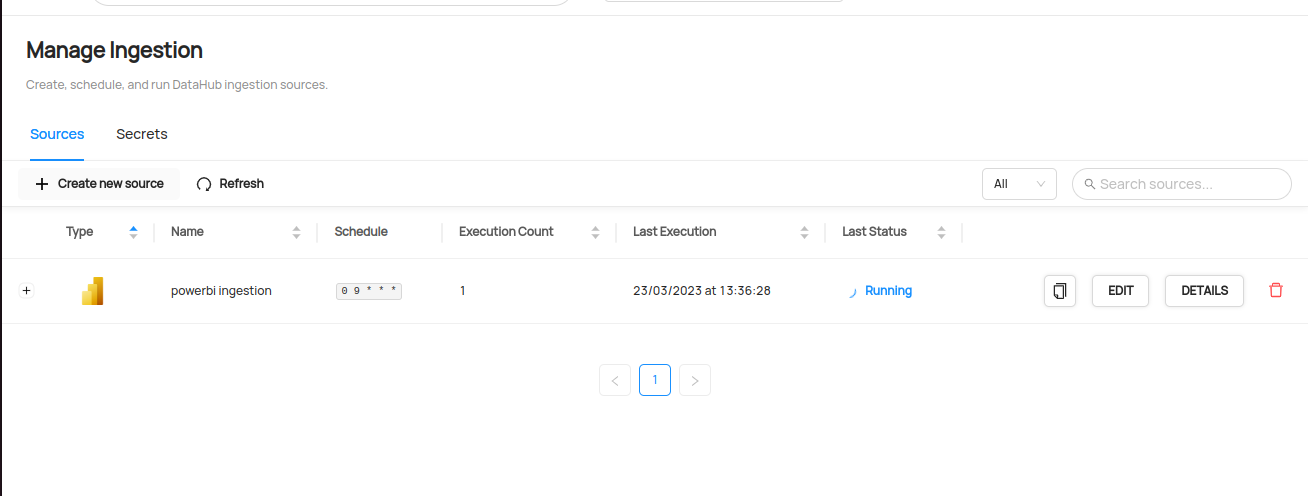
You will now find your new ingestion source running
Validate Ingestion Runs
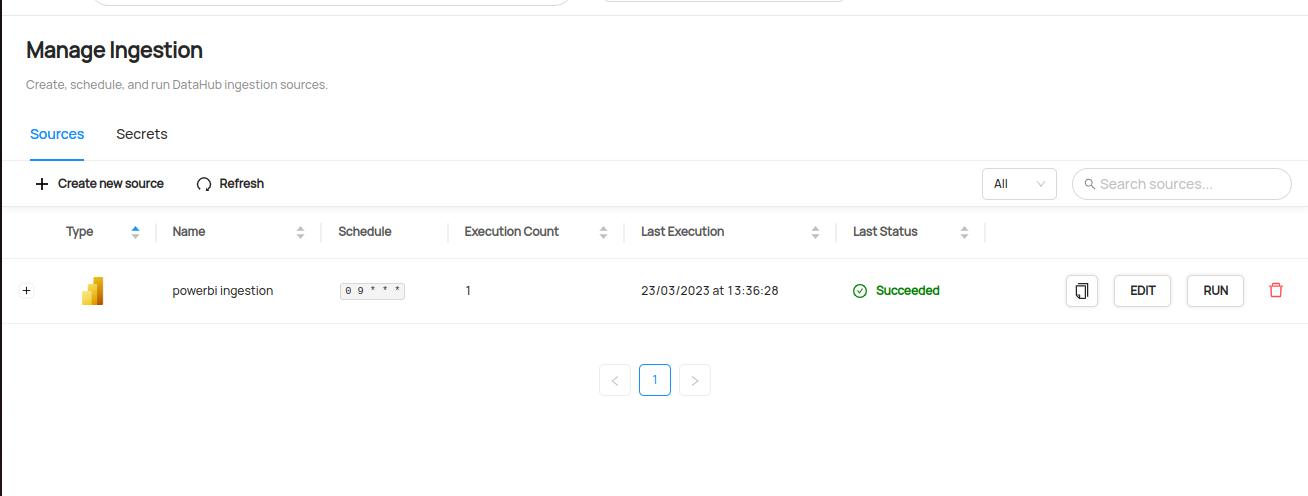
- View the latest status of ingestion runs on the Ingestion page
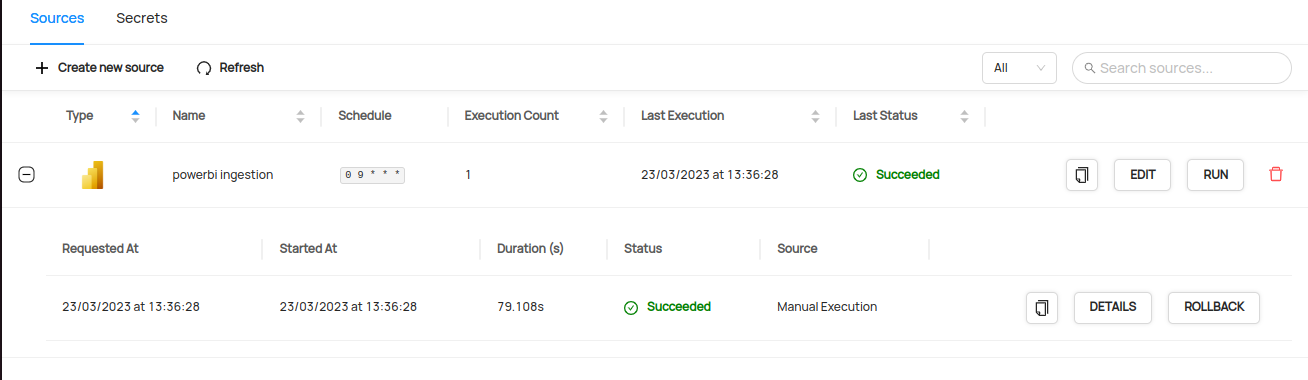
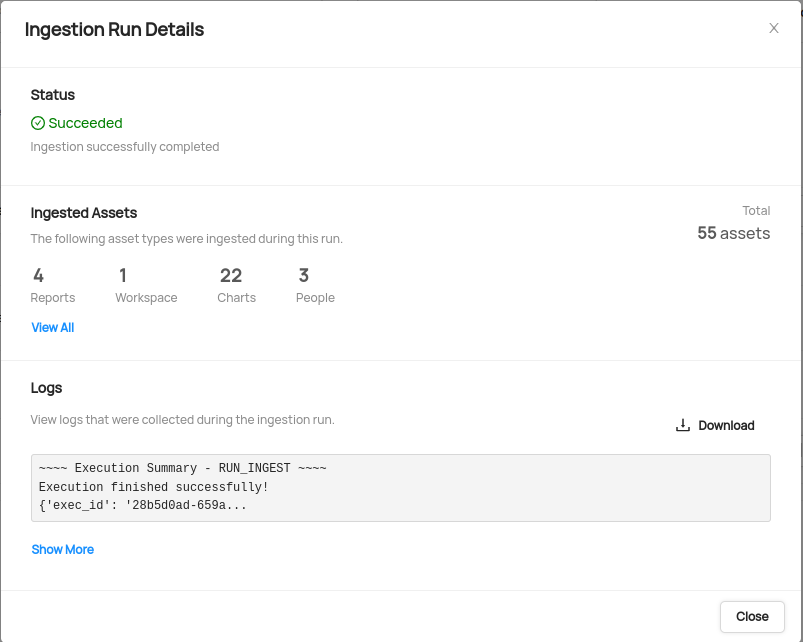
- Click the plus sign to expand the full list of historical runs and outcomes; click Details to see the outcomes of a specific run
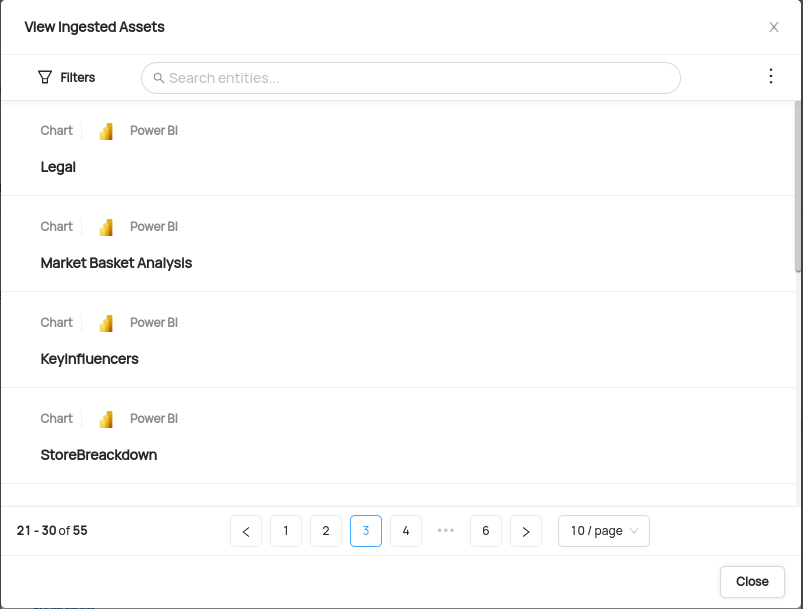
- From the Ingestion Run Details page, pick View All to see which entities were ingested
- Pick an entity from the list to manually validate if it contains the detail you expected
Congratulations! You've successfully set up Power BI as an ingestion source for DataHub!