Power BI Ingestion Guide: Setup & Prerequisites
Power BI Prerequisites
DataHub connects to Power BI using a service principal / Microsoft Entra application.
In order to configure ingestion from Power BI, you'll first have to ensure you have a Microsoft Entra application with permission to access the Power BI resources.
Register a new Microsoft Entra application
Follow the below steps to register an Entra application:
Login to the Azure portal at https://portal.azure.com
Go to
Microsoft Entra IDNavigate to
App registrationsClick on
+ New registrationIn the
Register an applicationwindow, fill out theNameof the application (e.g.datahub-powerbi-connector-app) and keep the other defaults as-is, then clickRegister.
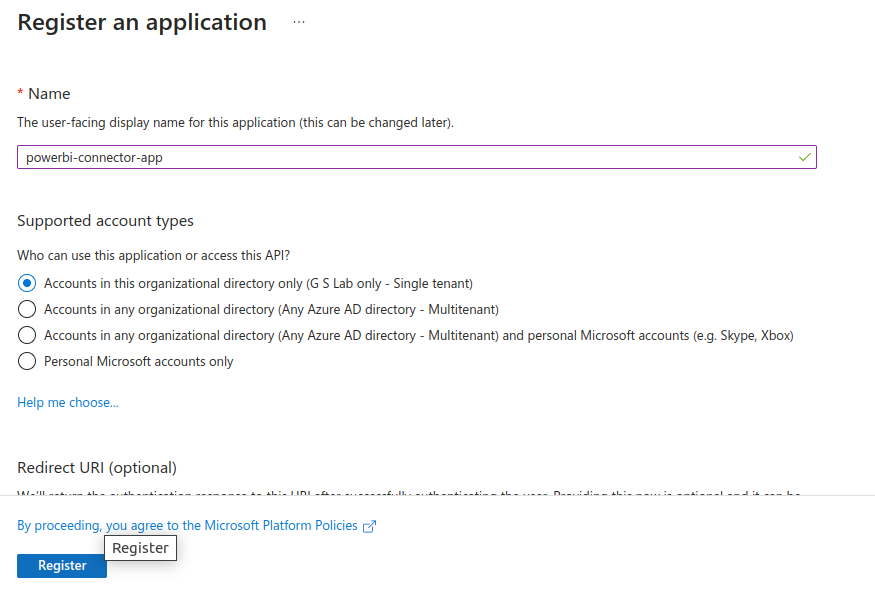
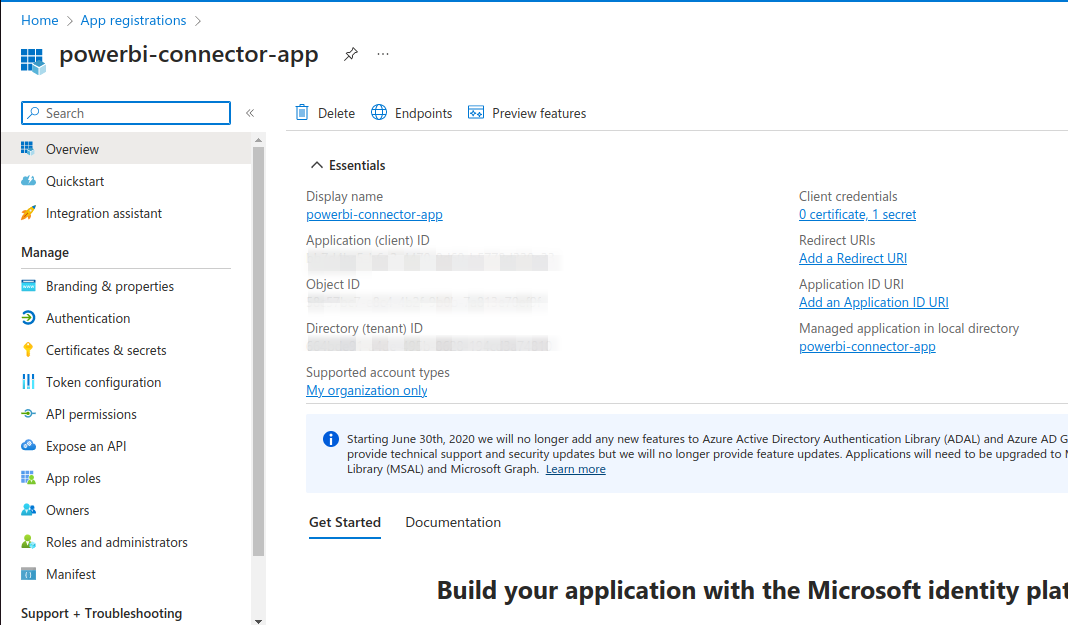
- Once the app is finished registering, the Azure portal will open up the application overview, as shown below. On this screen, note down the
Application (client) IDandDirectory (tenant) ID.
Create a client secret for the Entra application
Navigate to
Certificates & secretson the Entra application you just created.Click on
New client secretGenerate a new secret and note down the secret
Value
Create a new Microsoft Entra group
The application you registered will need to be a member of an Entra group in order to be granted Power BI/Fabric permissions. Follow the below steps to create a new Microsoft Entra Group:
Go to
Microsoft Entra IDNavigate to
Groupsand click onNew groupIn the
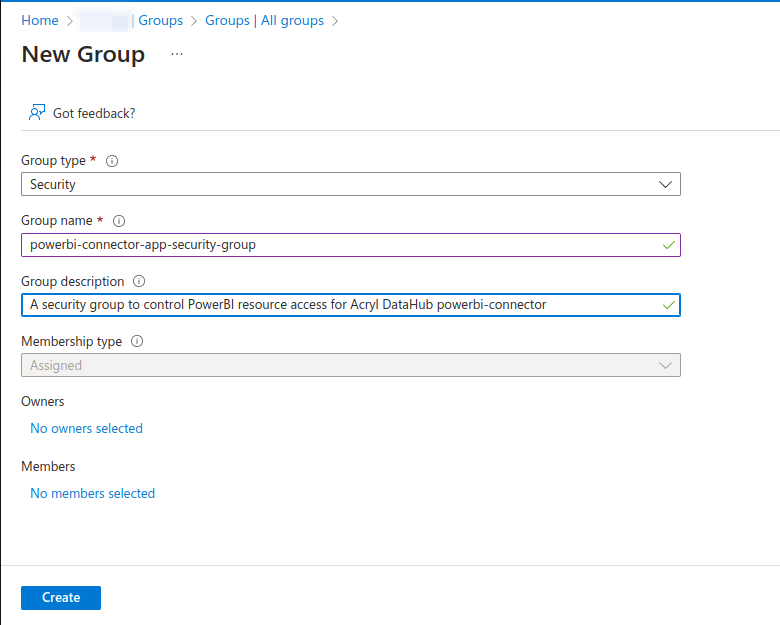
New groupwindow, leaveGroup typeas the default (Security) and fill out theGroup name(e.g.datahub-powerbi-connector-group), as shown in the below screenshot:
Add the Entra application as a member of the Entra group
Navigate to
All groupsand click on your newly created group.Navigate to
Membersand clickAdd members.Add your Microsoft Entra application (e.g.
datahub-powerbi-connector-app) as a member.
Grant permissions to access Power BI APIs
You need to add the created Entra group under your Power BI/Fabric tenant settings in order to grant resource access. Follow the below steps to grant privileges to the group and all applications within it:
Login to Power BI: https://app.powerbi.com/
Go to
Settings->Admin portalIn the
Admin portal, navigate toTenant settings.For each of the following options, enable the option and add the previously created security group (e.g. datahub-powerbi-connector-group) under
Specific security groups:Developer settings > Service principals can call Fabric public APIs(orAllow service principals to use Power BI APIsin older versions of Power BI)Admin API settings > Service principals can access read-only admin APIsAdmin API settings > Enhance admin APIs responses with detailed metadataAdmin API settings > Enhance admin APIs responses with DAX and mashup expressions
Add the Entra application as a member of your Power BI / Fabric workspaces
For workspaces which you want to ingest into DataHub, add the Entra application as a member.
Navigate to
WorkspacesOpen the workspace which you want to ingest, as shown in the below screenshot:
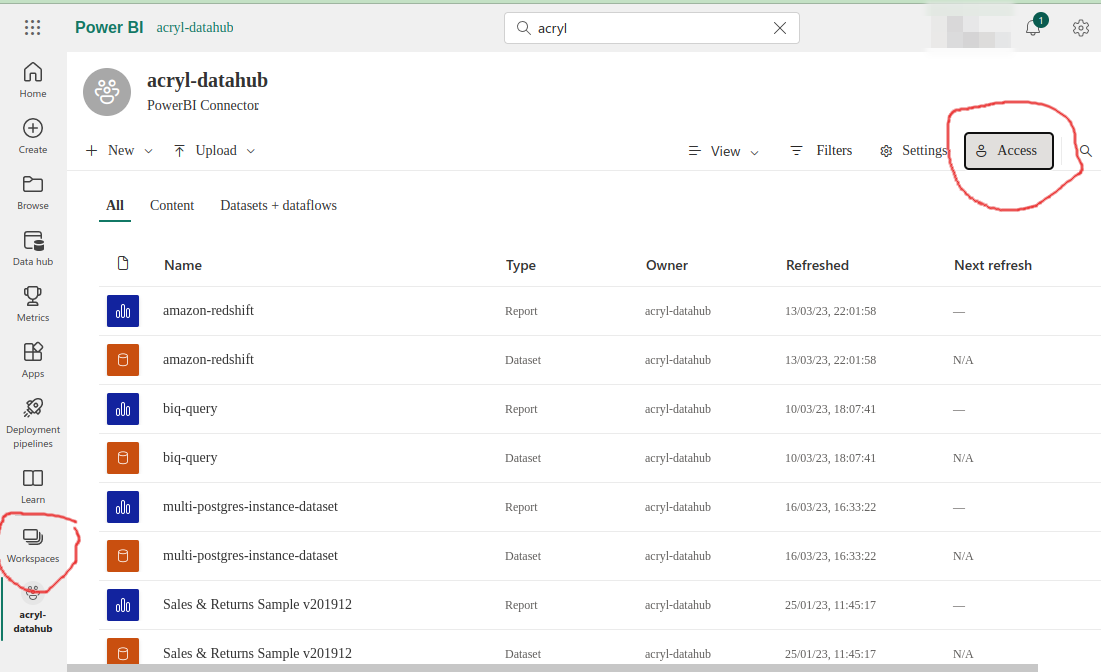
Click
Manage AccessClick
Add people or groupsAdd your Microsoft Entra application (e.g.
datahub-powerbi-connector-app) as a member. For most casesViewerrole is enough, but for profiling theContributorrole is required.
Next Steps
Once you've done all of the above steps, it's time to move on to configuring the actual ingestion source within DataHub.