BigQuery Plugin
Note: Ask DataHub Plugins is currently in Private Beta. To enable this feature, please reach out to your DataHub customer support representative.
The BigQuery Plugin connects Ask DataHub to Google BigQuery via the BigQuery MCP server, enabling conversational analytics directly from the chat. Like the Snowflake and Databricks plugins, DataHub acts as the semantic layer — finding the right data — while BigQuery serves as the data layer — executing queries and returning results.
Why Connect BigQuery?
With the BigQuery plugin enabled, Ask DataHub can:
- Conversational analytics — ask questions in plain language and get answers backed by real data. DataHub finds the right tables using metadata (descriptions, ownership, lineage), then BigQuery executes the query.
- Data exploration — understand dataset structure, preview sample data, and inspect column values to evaluate data quality or fitness for a use case.
- Data debugging — investigate data issues detected by DataHub assertions by inspecting the actual data: check for nulls, duplicates, unexpected values, or freshness problems at the source.
Because the plugin uses Google OAuth, each user authenticates with their own Google account. Users only see data they are authorized to access via IAM — no need to manage separate policies in DataHub.
Example prompts:
- "Query the top 10 customers by revenue this quarter"
- "How many null values are in the email column of the customers table?"
- "Show me 5 sample rows from the orders table"
- "List all datasets in my project"
Prerequisites
- A Google Cloud project with the BigQuery API enabled
- The BigQuery MCP server enabled in the project (see Step 1 below)
- Users must have the required IAM roles on the project (including
roles/bigquery.dataViewer,roles/bigquery.jobUser, androles/mcp.toolUser) - DataHub Cloud with Ask DataHub Plugins enabled
- Platform admin access in DataHub to configure the plugin
Admin Setup
The BigQuery plugin uses User OAuth authentication — each user authenticates with their own Google account. Setup involves enabling the BigQuery MCP server, creating an OAuth client in Google Cloud, then configuring the plugin in DataHub.
Step 1: Enable the BigQuery MCP Server
Enable the BigQuery MCP server in your Google Cloud project using the gcloud CLI:
gcloud beta services mcp enable bigquery.googleapis.com \
    --project=YOUR_PROJECT_ID
This command requires a recent version of the gcloud CLI beta component. If you see Invalid choice: 'mcp', run gcloud components update to update to the latest version.
For more details, see the Google Cloud documentation.
Step 2: Create an OAuth Client and Collect Credentials
Create a Web application OAuth client in Google Auth Platform > Clients. When configuring the client, add your DataHub OAuth callback URL as an Authorized redirect URI:
https://<your-datahub-url>/integrations/oauth/callback
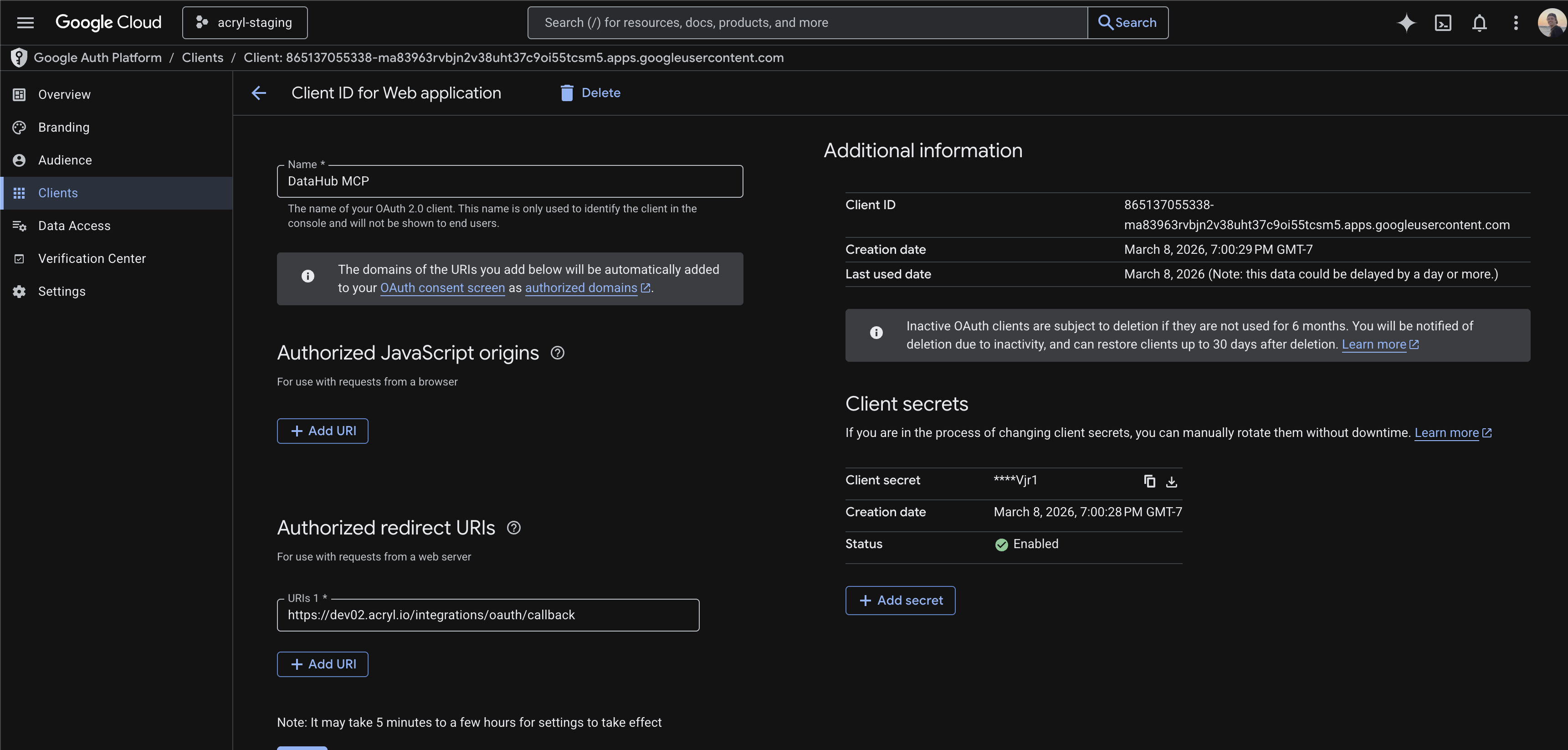
The Authorized redirect URI must match the OAuth Callback URL shown in the DataHub plugin creation form exactly (e.g. https://your-org.acryl.io/integrations/oauth/callback). You can copy this URL from the DataHub form when creating the plugin in Step 3.
After creating the client, copy the Client ID and Client Secret immediately — the client secret won't be shown again.
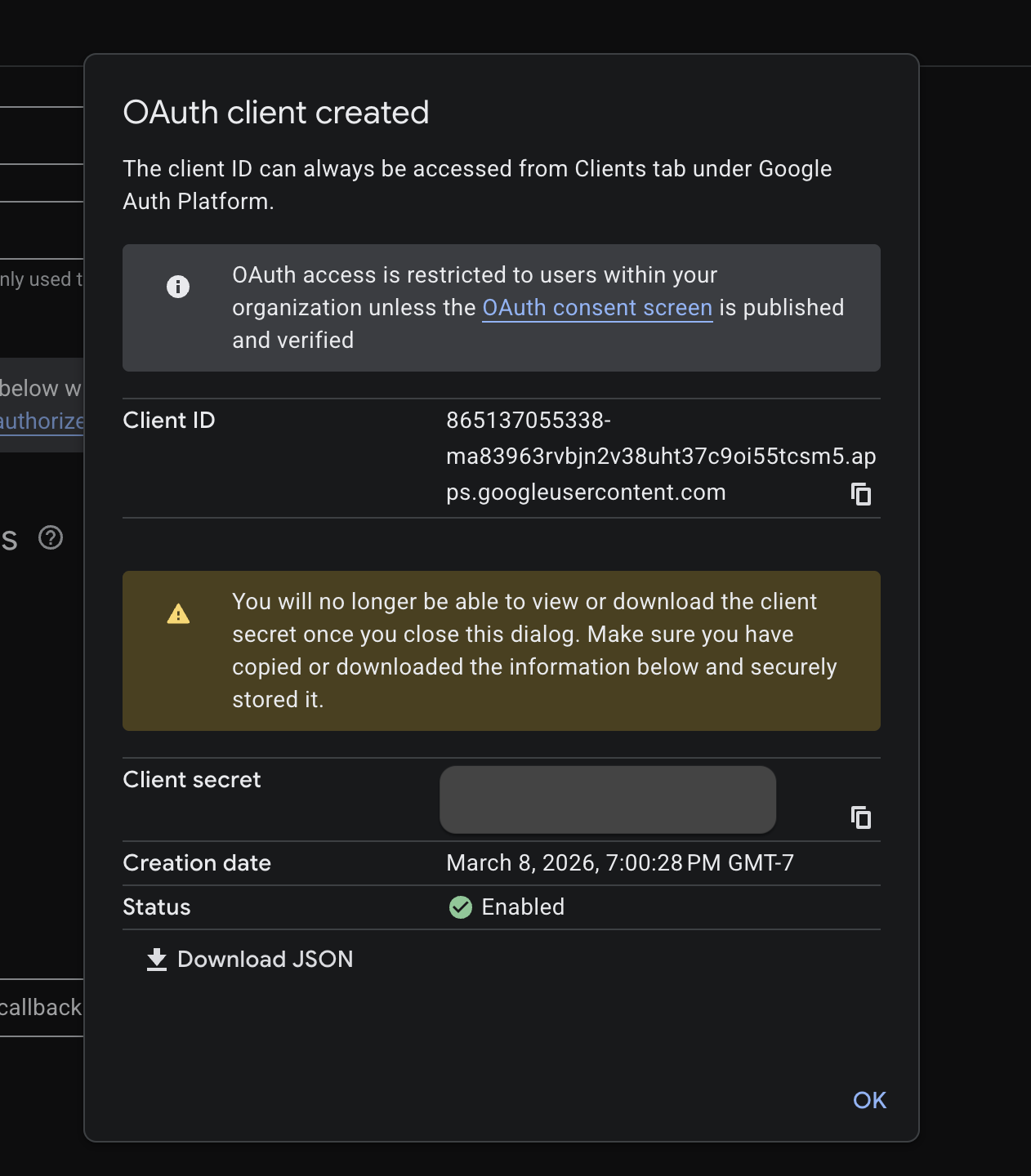
For detailed instructions, see Obtain OAuth 2.0 credentials in the Google documentation.
Step 3: Create Plugin in DataHub
- Navigate to Settings > AI > Plugins in DataHub
- Click + Create and select Custom MCP
- Fill in the plugin details:
| Field | Value |
|---|---|
| Name | BigQuery |
| Description | A description for the plugin |
| MCP Server URL | https://bigquery.googleapis.com/mcp |
| Authentication Type | User OAuth (Each user authenticates) |
- DataHub will automatically discover the OAuth configuration from Google. Provide the following:
| Field | Value |
|---|---|
| Client ID | From Step 2 |
| Client Secret | From Step 2 |
| Default Scopes | https://www.googleapis.com/auth/bigquery |
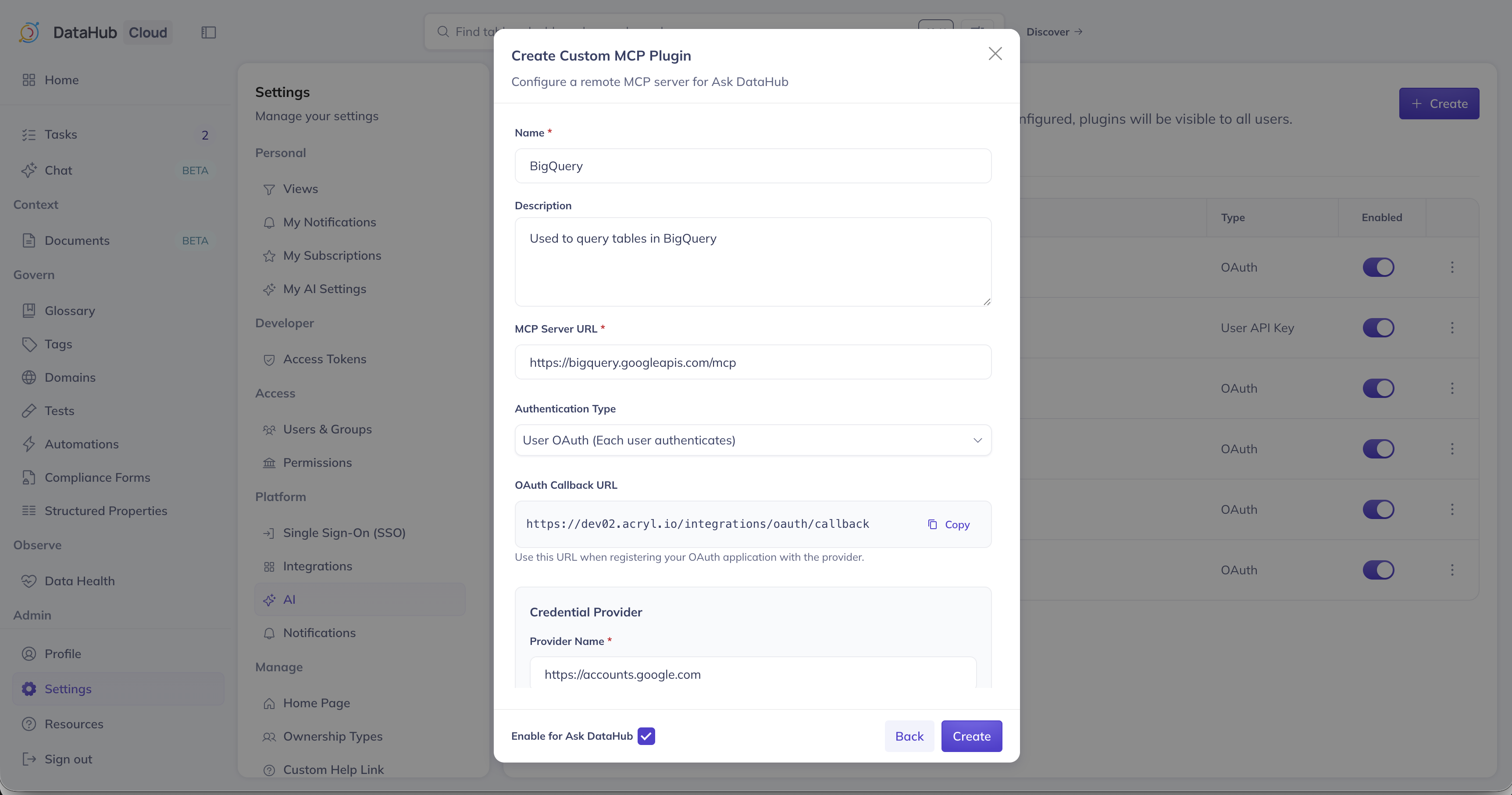
The https://www.googleapis.com/auth/bigquery scope grants read and write access to BigQuery. For a full list of available scopes, see BigQuery OAuth scopes.
- Optionally add Instructions for the AI Assistant, ensure Enable for Ask DataHub is on, and click Create
User Setup
Navigate to Settings > My AI Settings, find the BigQuery plugin, and click Connect. You'll be redirected to Google to authenticate, then back to DataHub. See the overview for more details.
If your OAuth consent screen is set to Internal, only users within your Google Workspace organization can authenticate. If set to External and not yet verified, users may see a warning — they can proceed by clicking Advanced > Go to \<app name>. For production use, consider verifying the consent screen.
Capabilities
Once connected, Ask DataHub can use the BigQuery MCP server to:
- Run SQL queries — execute SELECT queries against your BigQuery data (read-only; write operations are not supported)
- Browse datasets and tables — list datasets in a project and tables in a dataset
- Inspect table metadata — view schema, row counts, and other table details
For the full list of available tools, see the BigQuery MCP reference.
Troubleshooting
OAuth Fails
- Verify the Authorized redirect URI in Google Cloud matches the OAuth Callback URL shown in DataHub exactly
- Ensure the Client ID and Client Secret are entered correctly
- Check that the OAuth consent screen is configured for your Google Cloud project
Permission Errors
- Ensure the user has the required IAM roles on the project
- Verify the BigQuery MCP server is enabled in the project
Query Failures
- Verify the user has access to the datasets and tables they're querying
- Note that
execute_sqlqueries are limited to 3 minutes by default — longer queries are canceled automatically - BigQuery MCP does not support querying Google Drive external tables