GitHub Plugin
Note: Ask DataHub Plugins is currently in Private Beta. To enable this feature, please reach out to your DataHub customer support representative.
The GitHub Plugin connects Ask DataHub to GitHub via the GitHub MCP server, enabling the AI assistant to browse repositories, review code, raise pull requests, and more — all from within Ask DataHub.
Why Connect GitHub?
With the GitHub plugin enabled, Ask DataHub can:
- Root-cause data issues — when DataHub assertions detect a problem, trace it back to the source by reviewing recent commits and pull requests that touched the relevant transformation logic or pipeline code.
- Data development — browse dbt models, inspect pipeline definitions, and raise pull requests to fix issues — all without leaving the chat. Go from detecting a data quality problem to shipping a fix in one conversation.
- Code exploration — find and inspect transformation logic, configuration files, and pipeline definitions across your repositories to understand how data is produced and transformed.
Example prompts:
- "Show me recent changes to the ETL pipeline in the data-platform repo"
- "What PRs were merged this week that touch the revenue model?"
- "Find the dbt model definition for customer_churn"
- "Raise a PR to fix the null-handling bug in the orders transformation"
Prerequisites
- A GitHub account (personal or organization)
- Admin access to create OAuth Apps in GitHub
- DataHub Cloud with Ask DataHub Plugins enabled
- Platform admin access in DataHub to configure the plugin
Admin Setup
The GitHub plugin uses User OAuth authentication — each user authenticates with their own GitHub account. You'll need to create a GitHub OAuth App and configure it in DataHub.
You can create the OAuth App under your organization (recommended) or your personal account:
- Organization app: Immediately available to all org members, not scoped to just one user's repositories
- Personal app: Scoped to your personal repositories by default
Option A: Organization OAuth App (Recommended)
Step 1: Create OAuth App in GitHub
- Open GitHub and navigate to your organization's OAuth Apps page:
https://github.com/organizations/<YOUR_ORG>/settings/applications
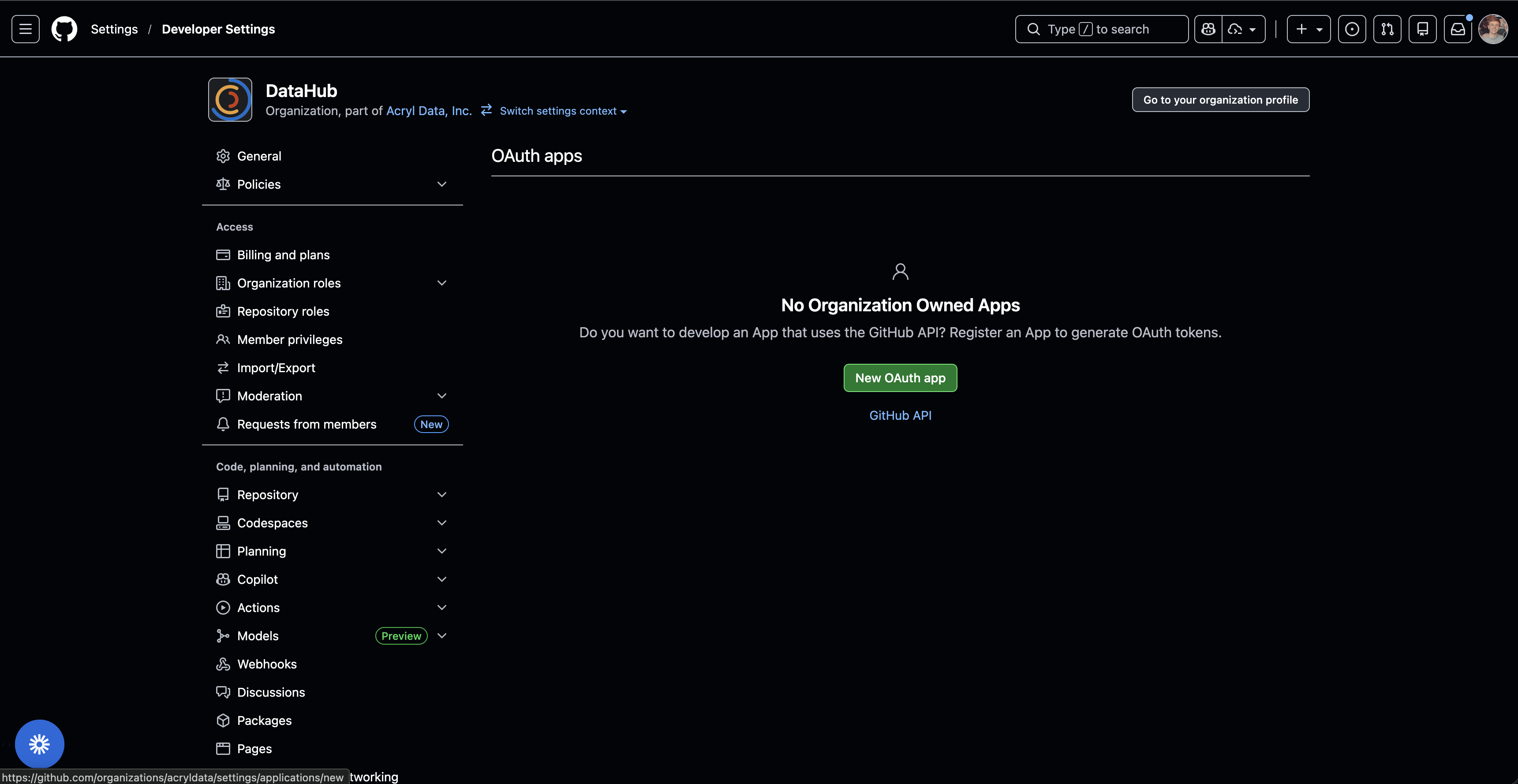
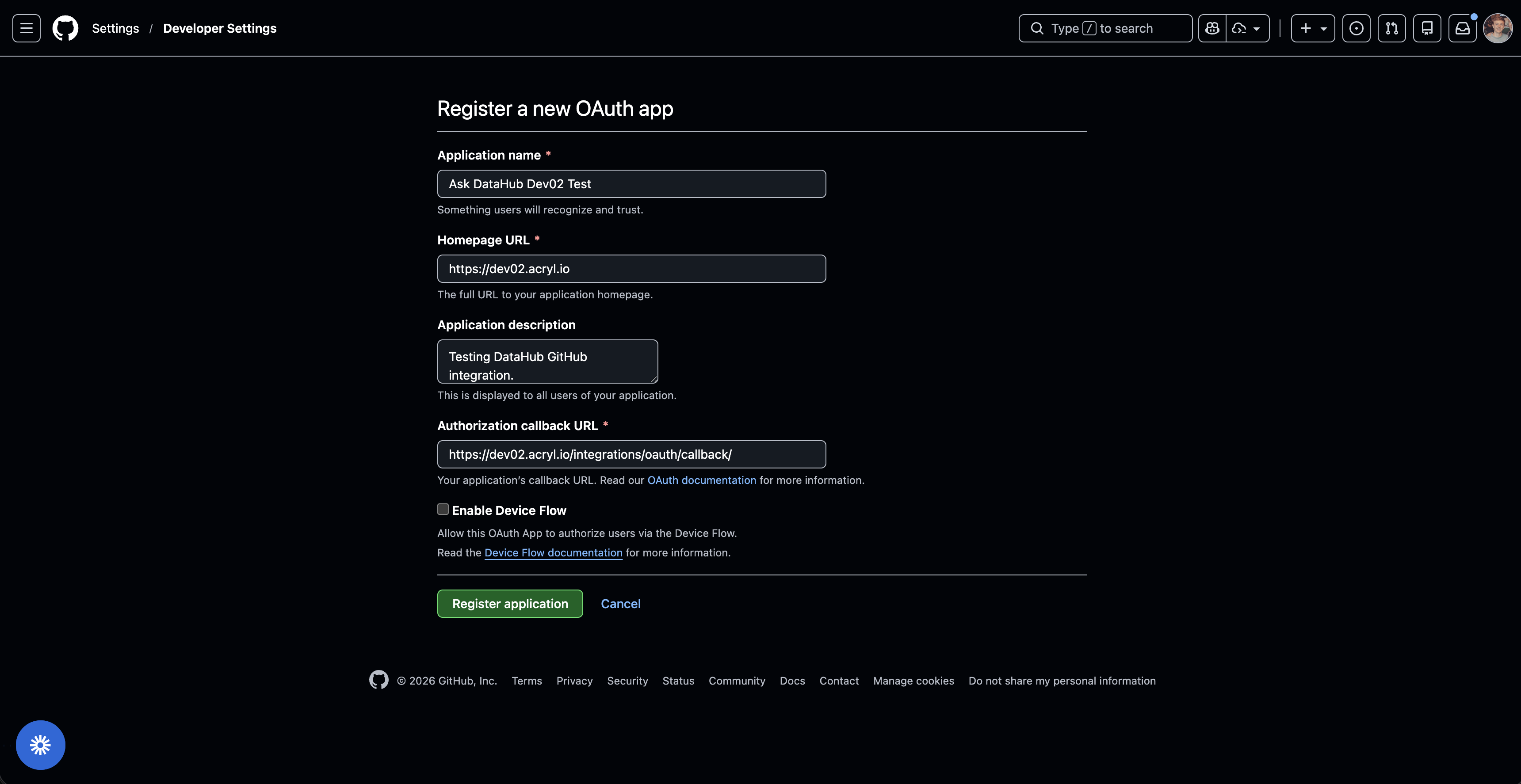
- Click New OAuth App and fill in the application details:
| Field | Value |
|---|---|
| Application name | DataHub AI Plugin (or any name your team will recognize) |
| Homepage URL | https://<your-datahub-url> |
| Authorization callback URL | https://<your-datahub-url>/integrations/oauth/callback |
The Authorization callback URL must match the OAuth Callback URL shown in DataHub exactly (e.g. https://your-org.acryl.io/integrations/oauth/callback). You can copy this URL from the DataHub plugin creation form.
- Click Register application
Step 2: Collect Credentials
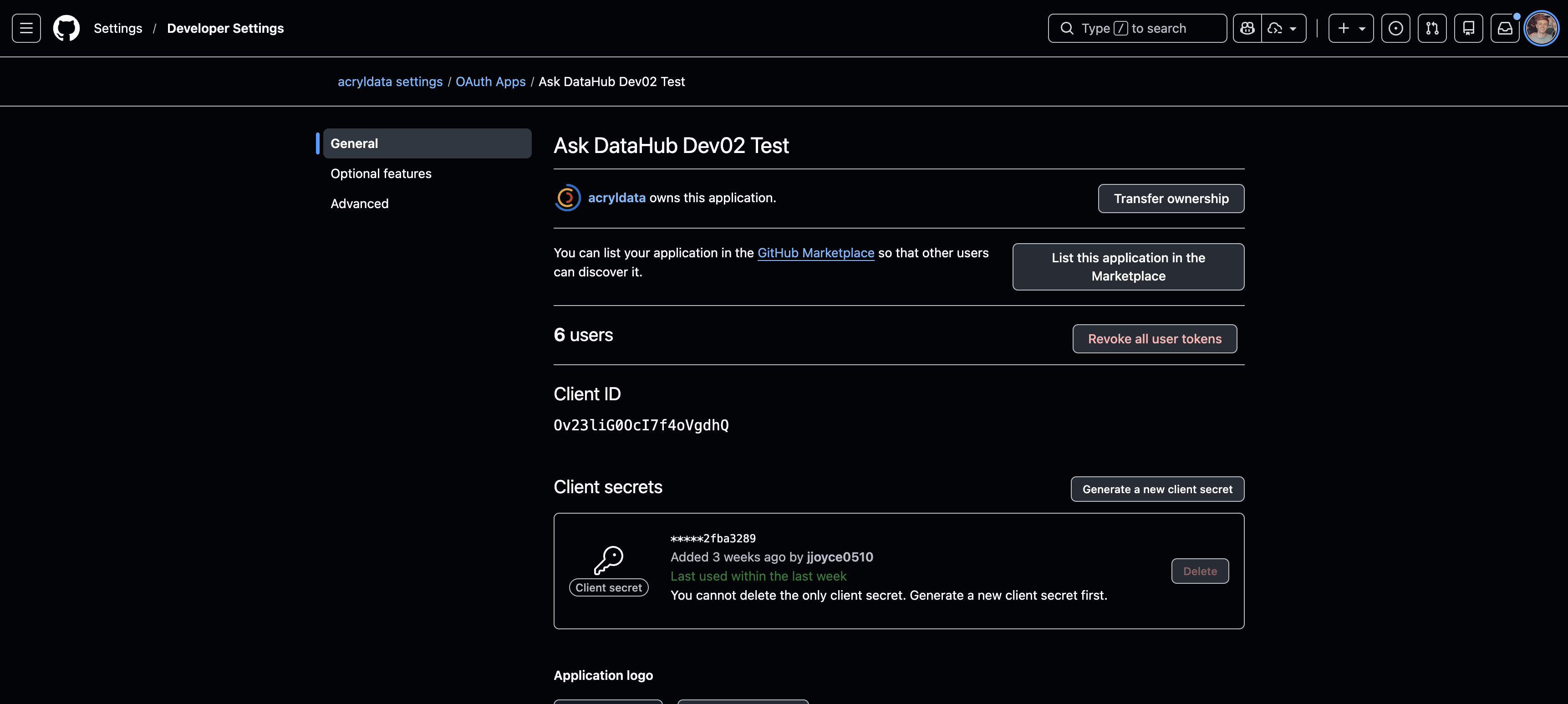
- Copy the Client ID from the app page
- Click Generate a new client secret and copy it immediately (it won't be shown again)
Step 3: Create Plugin in DataHub
- Navigate to Settings > AI > Plugins in DataHub
- Click + Create and select GitHub MCP
- Fill in the plugin details:
| Field | Value |
|---|---|
| Name | GitHub |
| Description | A description for the plugin |
| Client ID | The client ID from Step 2 |
| Client Secret | The client secret from Step 2 |
| Default Scopes | repo (required — see below) |
- Copy the OAuth Callback URL shown in the DataHub form and verify it matches the Authorization callback URL you entered in GitHub in Step 1
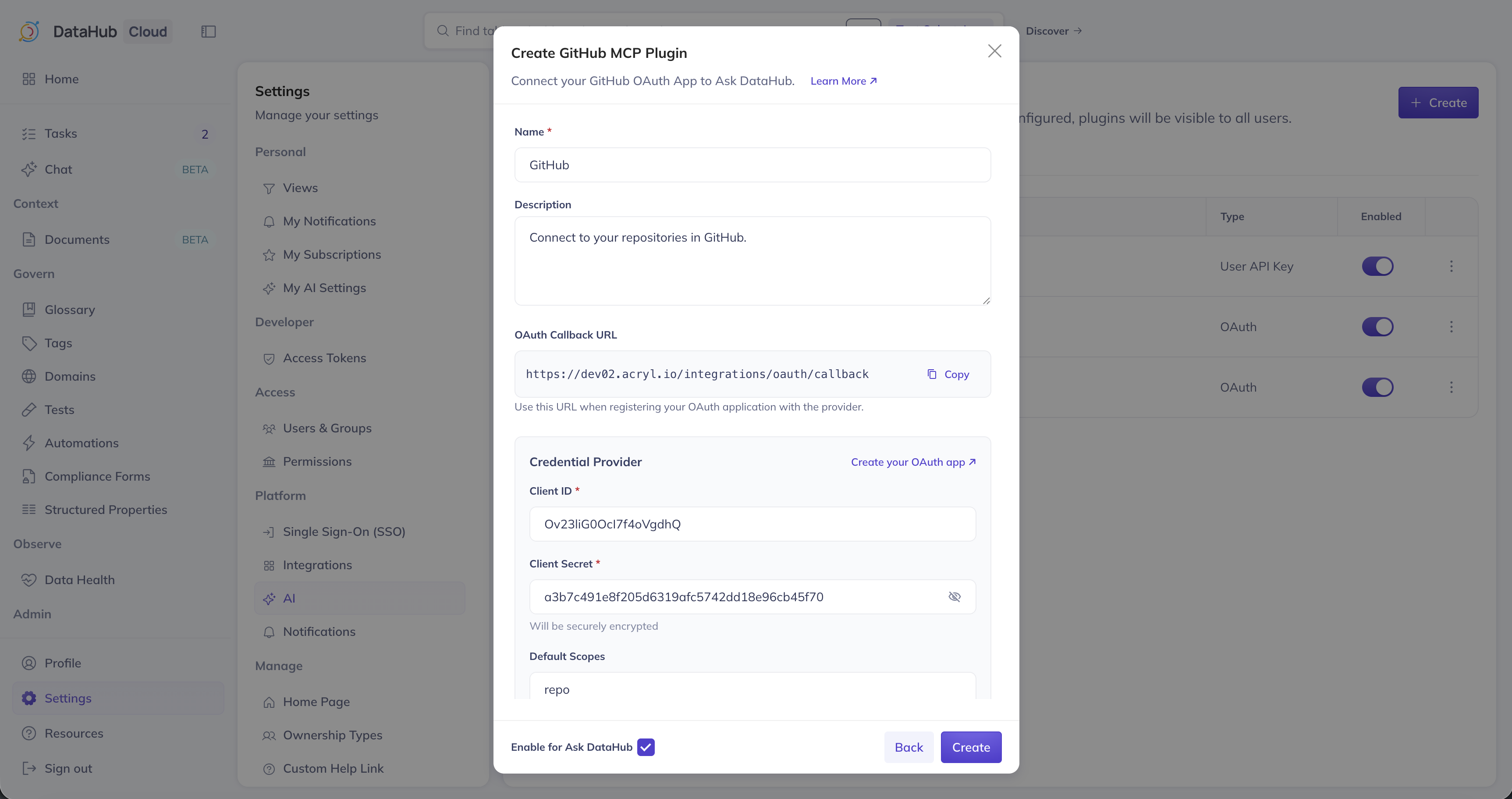
You must include repo in the scopes so Ask DataHub can read repository code, commits, and pull requests. Without this scope, the plugin will have very limited functionality.
- Optionally add Instructions for the AI Assistant, ensure Enable for Ask DataHub is on, and click Create
The GitHub OAuth App grants access to all repositories the user can see — which can be a lot. We strongly recommend using the Instructions for the AI Assistant field to guide the AI toward the repositories and organizations most relevant to your data team. For example:
"Focus on the acme/data-platform and acme/etl-pipelines repositories. These contain our core data transformation and pipeline code. When looking for dbt models, check acme/dbt-models."
This helps the AI find relevant code faster and avoids searching across unrelated repos.
Option B: Personal Account OAuth App
The steps are the same as above, except navigate to GitHub > Your Profile > Settings > Developer Settings > OAuth Apps instead of organization settings. When creating the app, open both GitHub and DataHub side by side — you'll need to copy the OAuth Callback URL from DataHub into GitHub, and the Client ID/Secret from GitHub into DataHub.
Recommended Scopes
| Scope | Required | Access |
|---|---|---|
repo | Yes | Full access to repositories (code, PRs, issues) |
read:org | No | Read organization data (teams, members) |
user | No | Read user profile information |
User Setup
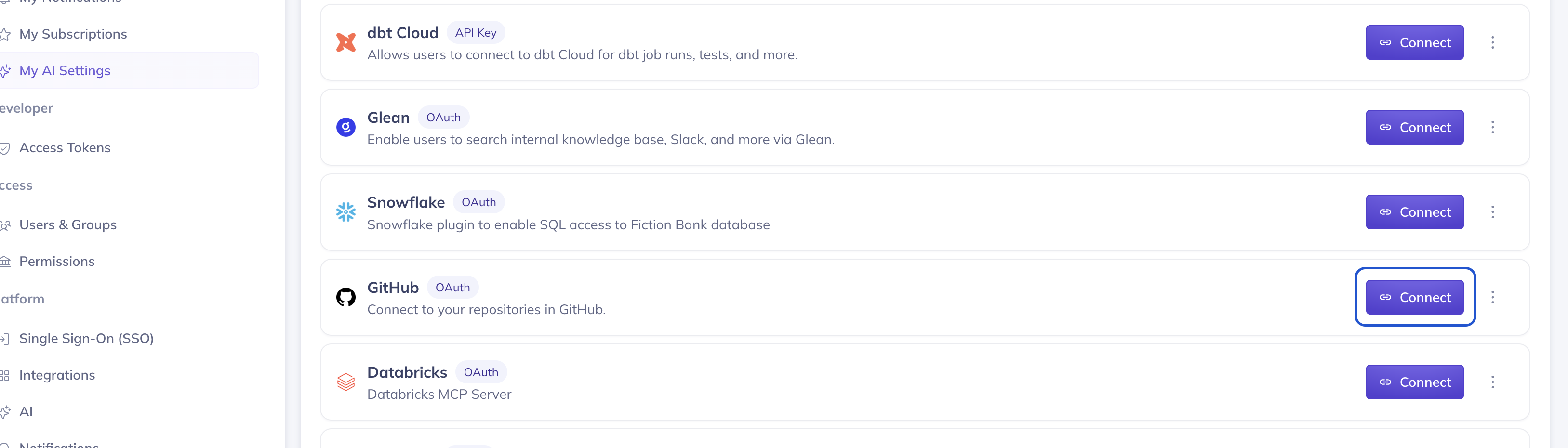
Navigate to Settings > My AI Settings, find the GitHub plugin, and click Connect. A popup will open asking you to authorize the OAuth App on GitHub. After authorization, you'll be redirected back to DataHub. See the overview for more details.
FAQ
Can I use a personal OAuth App instead of an organization one?
Yes. A personal OAuth App works the same way — the scopes, authorization flow, and plugin configuration are identical. The difference is in management and access:
- Organization apps are owned by the org and visible to all org admins. Any org member who authorizes the app can access org repositories. This is the recommended approach because it's easier for your team to manage and doesn't depend on a single person's account.
- Personal apps are tied to your personal GitHub account. They still work — when other users authorize the app, they'll be able to access any repository they personally have access to (including org repos). However, if your account is deactivated, the app stops working.
We recommend organization-level apps for production use. Personal apps are fine for testing or individual use.
Troubleshooting
OAuth Popup Blocked
If the authorization popup doesn't appear, check your browser's popup blocker settings and allow popups from your DataHub instance URL.
Authorization Fails
- Verify the Authorization callback URL in GitHub matches the OAuth Callback URL shown in DataHub exactly
- Ensure the Client ID and Client Secret are entered correctly in DataHub
- For organization apps, ensure the OAuth App is not restricted by organization policies
Limited Repository Access
- For organization OAuth Apps, users may need to grant access to specific organizations during the authorization flow
- Verify the scopes include
repofor full repository access