Ask DataHub Plugins
Note: Ask DataHub Plugins is currently in Private Beta. To enable this feature, please reach out to your DataHub customer support representative.
Ask DataHub Plugins let you connect external tools — like Snowflake, Databricks, BigQuery, dbt Cloud, GitHub, Glean, and more — directly into Ask DataHub via the Model Context Protocol (MCP).
With Plugins, can connect any MCP-compatible server that supports Streamable HTTP transport. Once connected, Ask DataHub can use these tools alongside your metadata catalog to answer richer questions and perform cross-tool workflows.
Why Use Plugins?
Plugins unlock powerful capabilities that go beyond what metadata alone can provide:
- Conversational analytics: Find the right data in DataHub, then query it directly on Snowflake, Databricks, or BigQuery — all in a single conversation. DataHub acts as a semantic layer, guiding the AI to the right tables before executing queries.
- Cross-tool debugging: Root-cause a data issue by checking dbt run history, querying tables on Snowflake, and reviewing recent code changes on GitHub — without leaving the chat.
- Governance workflows: Verify data lineage in DataHub, check transformation logic in dbt, and review access controls — bringing together context from multiple systems.
Available Plugins
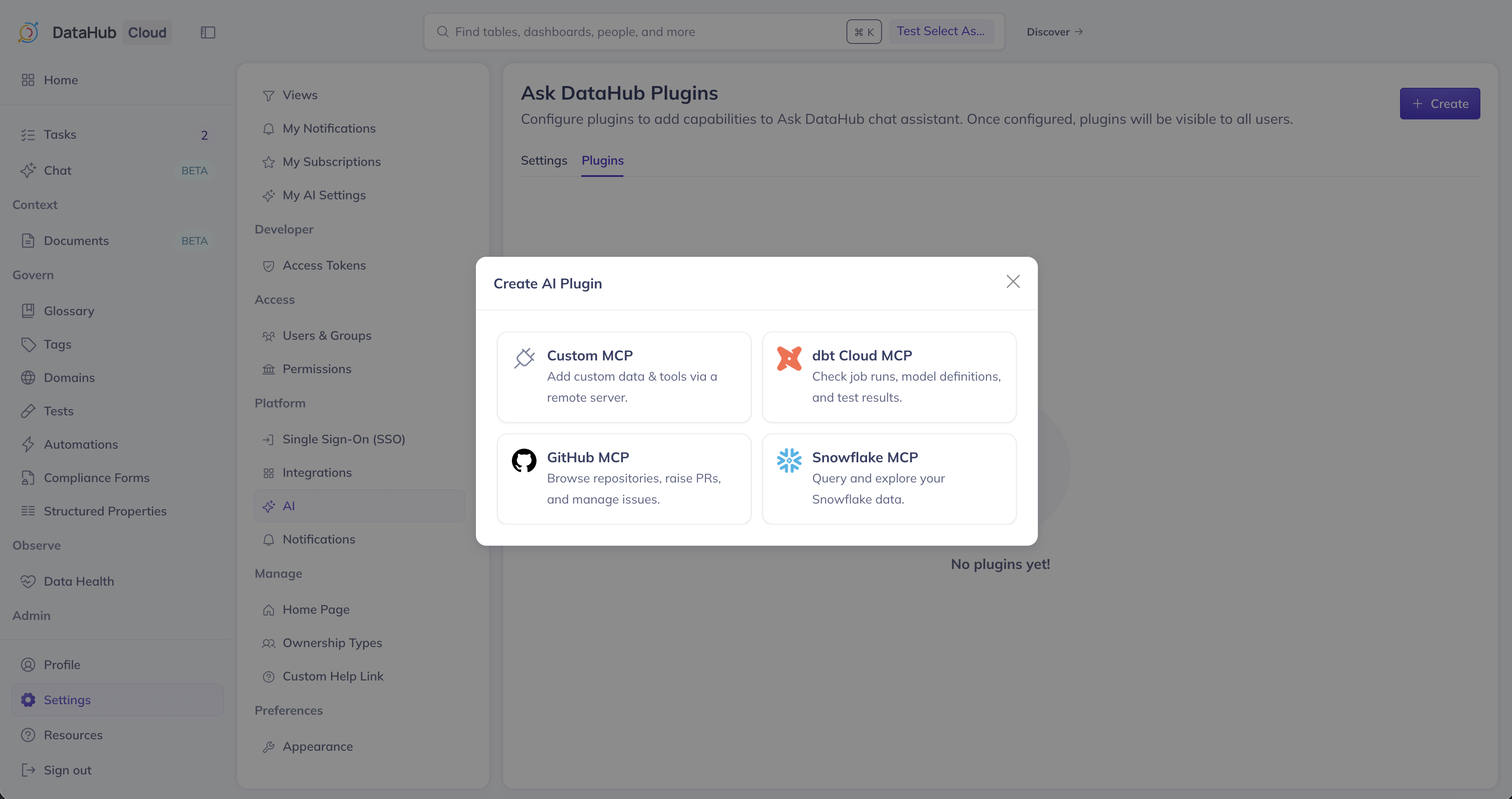
DataHub provides built-in plugin templates for popular tools. For connecting to other MCP Servers — including internal services, custom APIs, or any tool with an MCP server — use the Custom MCP option.
| Plugin | Description | Guide |
|---|---|---|
| Snowflake | Query and explore your Snowflake data | Setup Guide |
| Databricks | Query and explore your Databricks data | Setup Guide |
| BigQuery | Query and explore your BigQuery data | Setup Guide |
| dbt Cloud | Check job runs, model definitions, and test results | Setup Guide |
| GitHub | Browse repositories, raise PRs, and manage issues | Setup Guide |
| Glean | Search your organization's knowledge base | Setup Guide |
| Custom MCP | Connect any MCP-compatible server | See below |
How It Works
Plugins follow a two-step workflow:
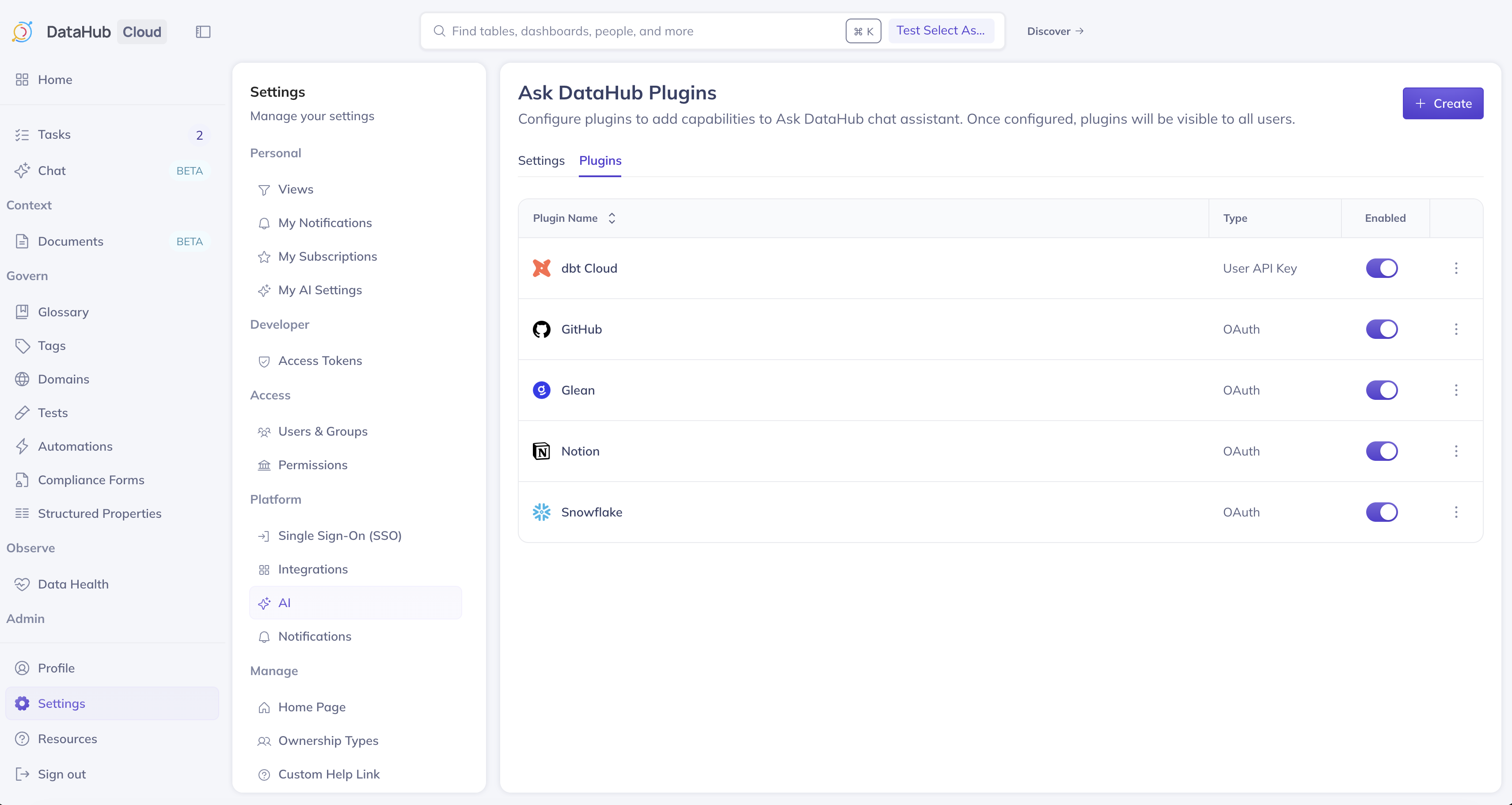
- Admin configures the plugin by connecting to an MCP server (via Settings > AI > Plugins)
- Users enable plugins they want to use from their personal settings (via Settings > My AI Settings) or directly from the chat interface
Once a user enables a plugin, its tools become available during Ask DataHub conversations. The AI assistant will automatically use these tools when relevant to a question.
Admin Setup: Configuring Plugins
You must have the Manage Platform Settings privilege to configure plugins.
Creating a Plugin
- Navigate to Settings > AI > Plugins
- Click + Create in the top-right corner
- Select a built-in plugin template (Snowflake, dbt Cloud, GitHub) or choose Custom MCP for other tools
Configuring a Custom MCP Plugin
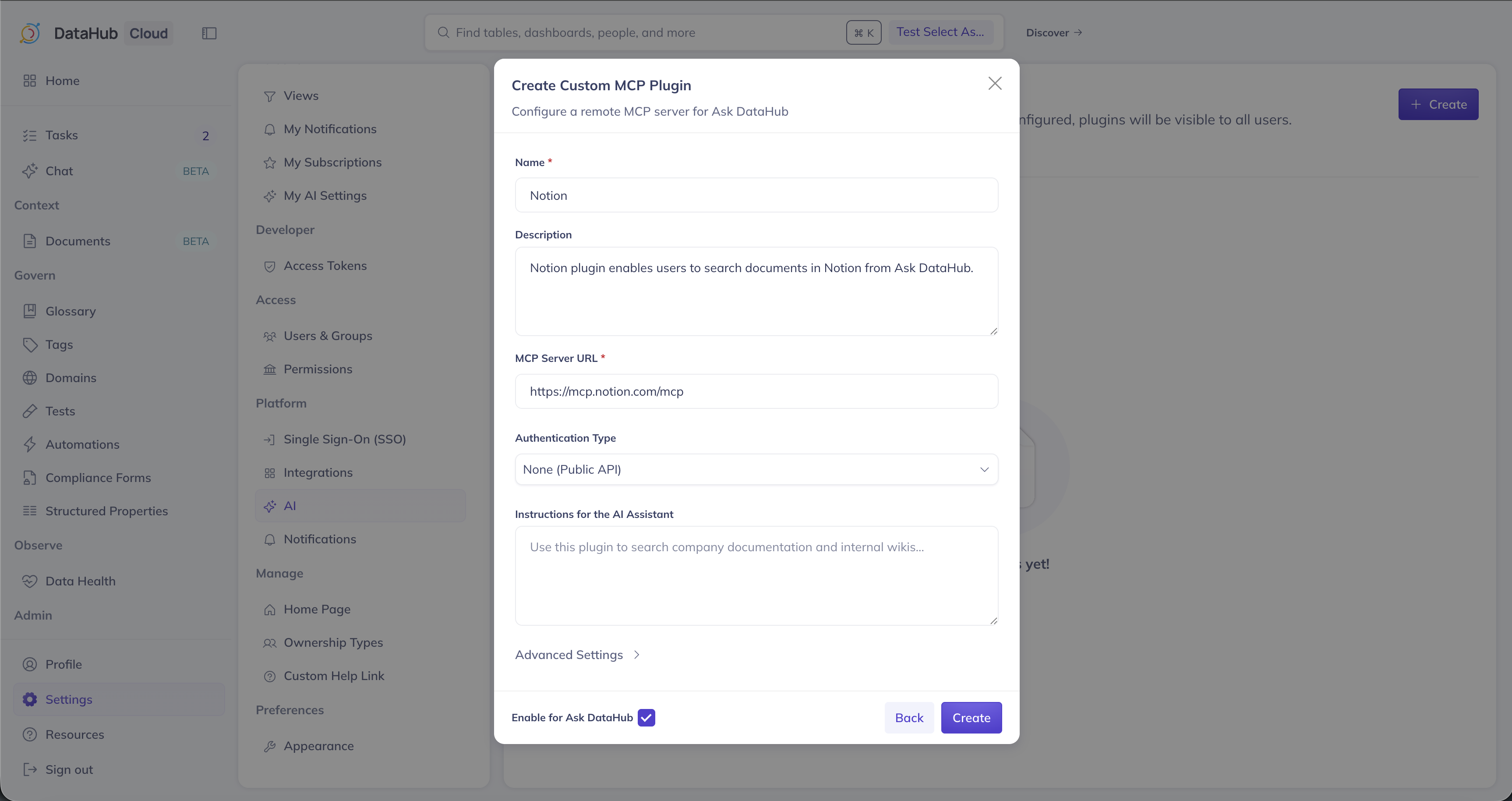
Use Custom MCP to connect any MCP-compatible server — whether it's a third-party tool like Notion or Glean, an internal service your team has built, or any other API exposed via MCP. The server must support Streamable HTTP transport.
When creating a Custom MCP plugin, provide:
| Field | Description |
|---|---|
| Name | A display name for the plugin (visible to all users) |
| Description | A brief description of what this plugin provides |
| MCP Server URL | The URL of the remote MCP server |
| Authentication Type | How users authenticate with the MCP server (see below) |
| Instructions for the AI Assistant | Custom instructions fed to Ask DataHub when using this plugin (optional) |
Authentication Types
Plugins support three authentication mechanisms:
None (Public API)
No authentication required. Use this for publicly accessible MCP servers that don't require credentials.
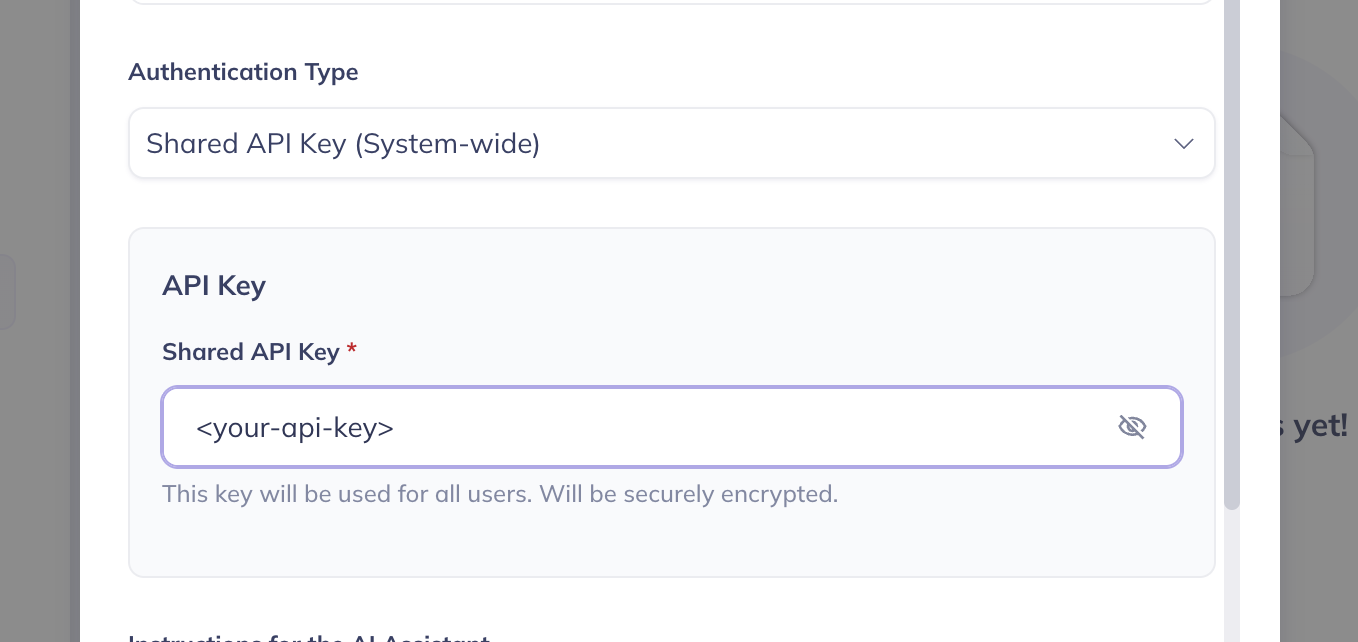
Shared API Key (System-wide)
A single API key shared across all users. The admin provides the key during setup, and it is used for every user's requests. Best for tools where a single service account is appropriate.
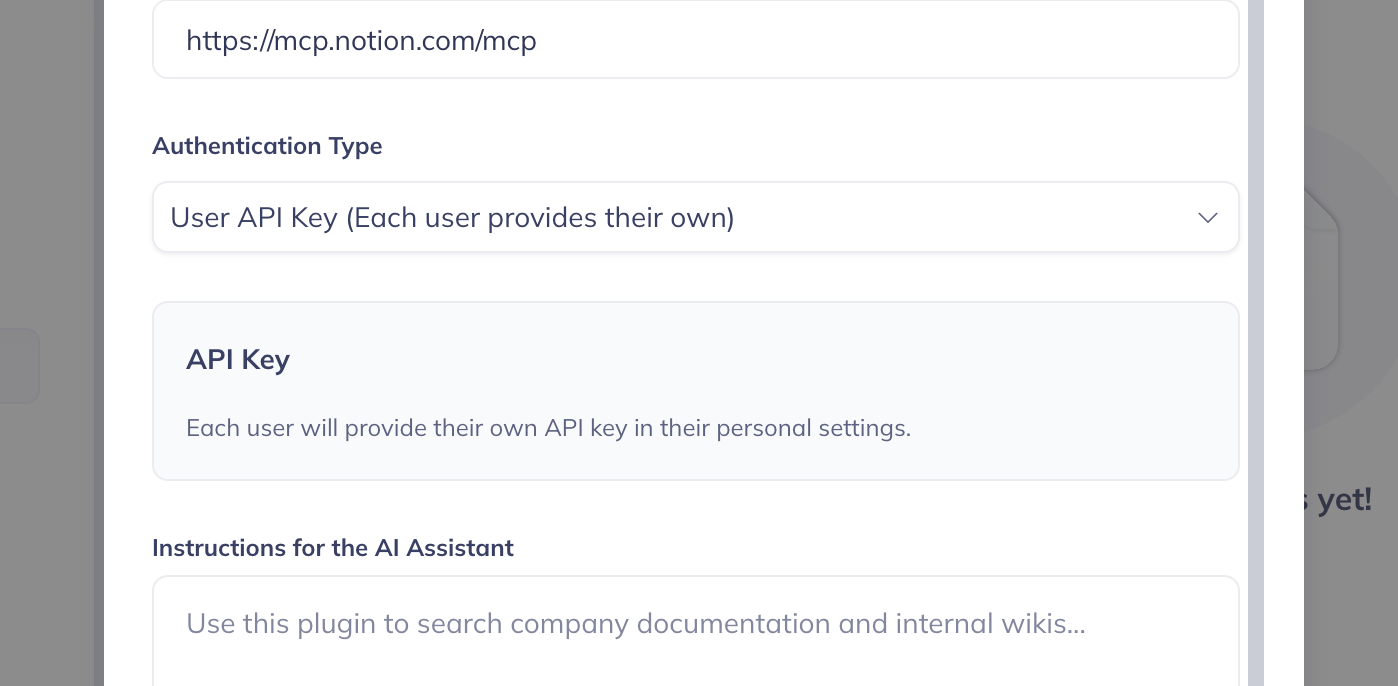
User API Key (Each User Provides Their Own)
Each user provides their own API key when enabling the plugin. This ensures per-user access control and audit trails. Users will be prompted to enter their key when they connect to the plugin.
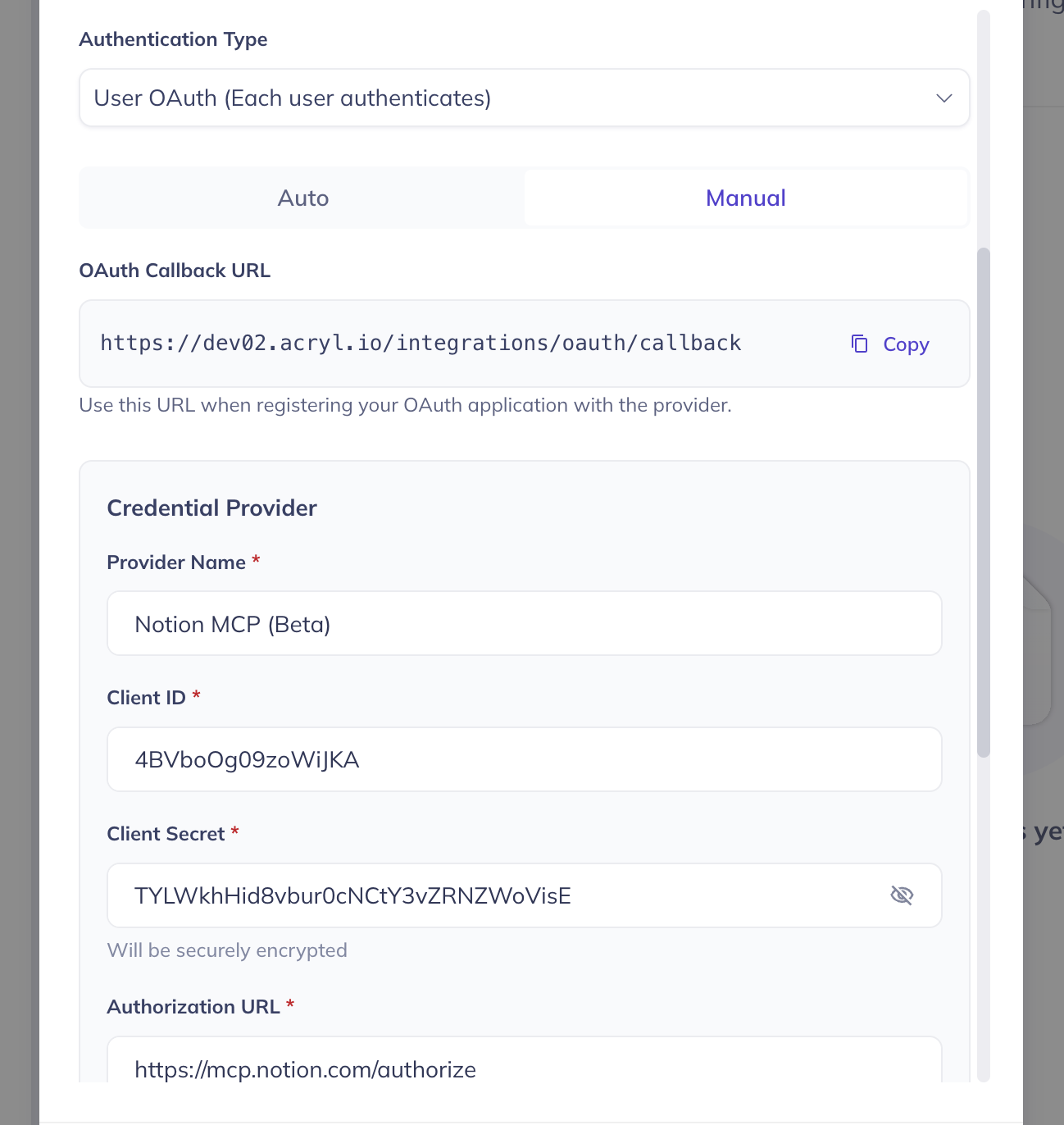
User OAuth (Each User Authenticates)
Each user authenticates via OAuth when enabling the plugin. The admin configures the OAuth provider (client ID, client secret, authorization URL, token URL, scopes), and users go through a standard OAuth login flow to connect.
Testing the Connection
After configuring a plugin, click Test Connection to verify that the MCP server is reachable and the credentials are valid before saving.
Custom Instructions
The Instructions for the AI Assistant field lets you provide guidance to Ask DataHub on how to use the plugin. For example:
- "Use this plugin to query Snowflake when users ask about revenue or customer metrics."
- "Always check dbt test results before reporting on data quality."
These instructions are injected into the AI context whenever the plugin is active.
User Setup: Enabling Plugins
Once an admin has configured a plugin, any user can enable it for their own Ask DataHub experience.
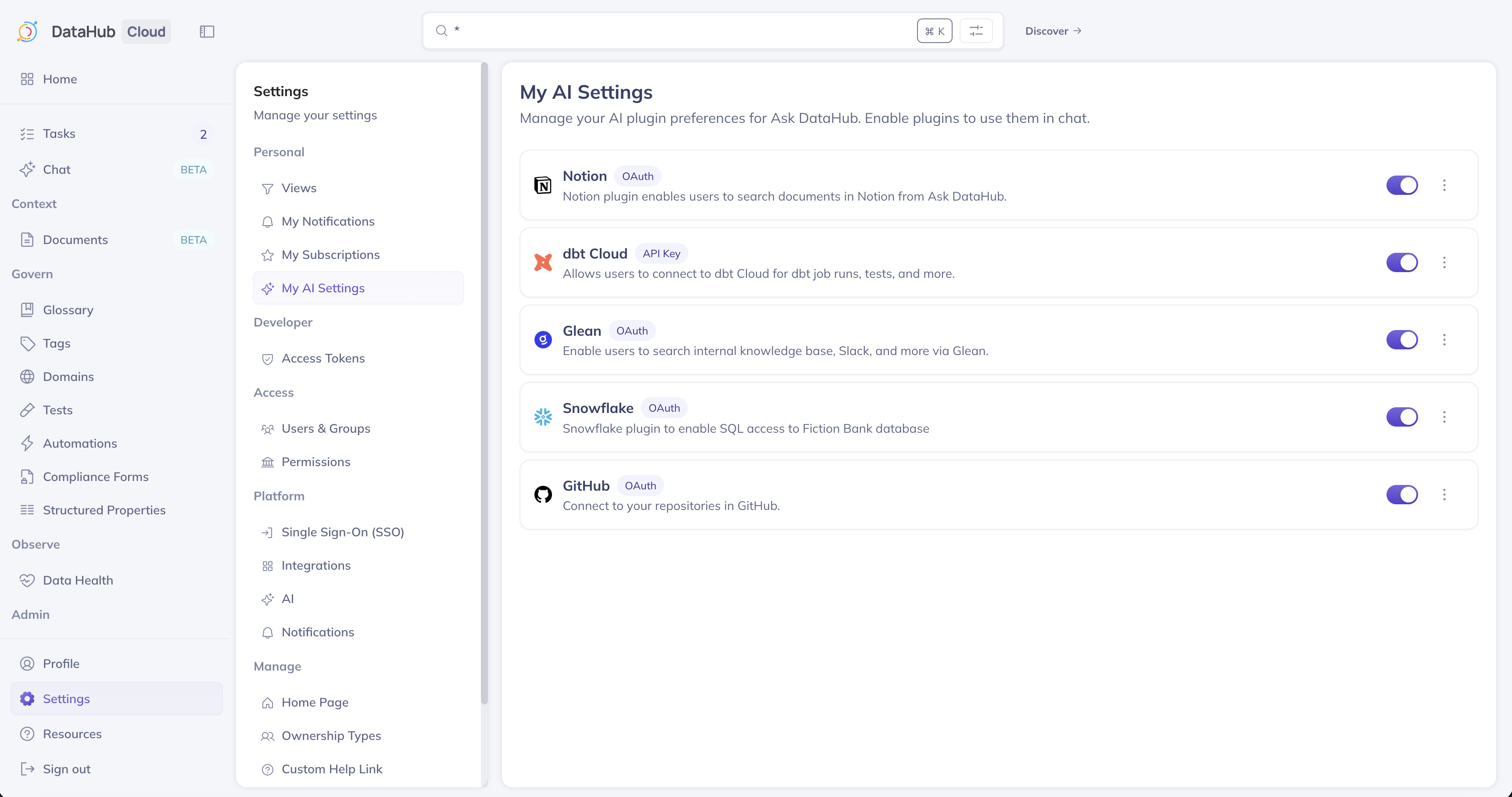
From Personal Settings
- Navigate to Settings > My AI Settings
- You'll see a list of all available plugins configured by your admin
- Toggle a plugin on to enable it, or click Connect to authenticate (for API Key or OAuth plugins)
From the Chat Interface
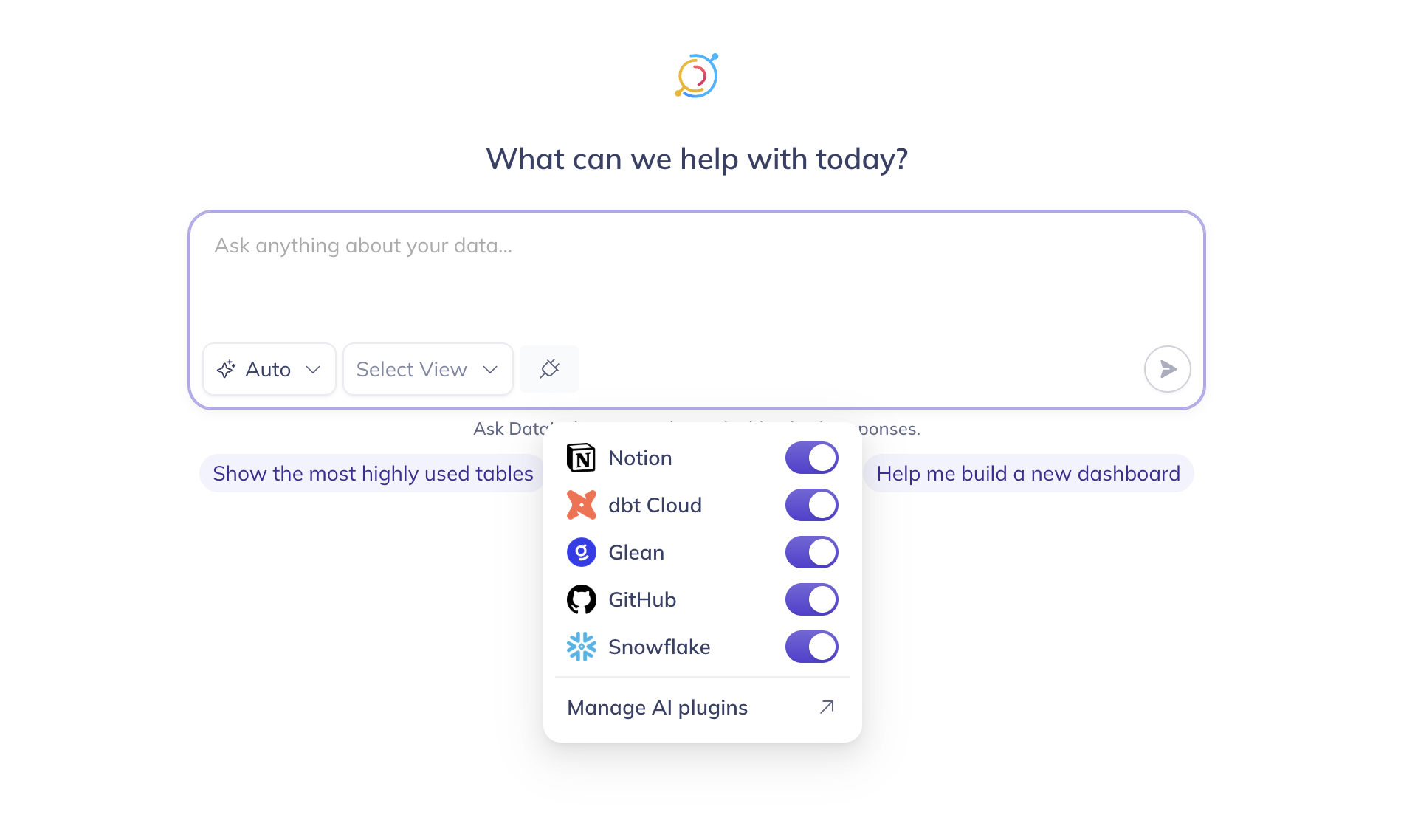
You can also manage plugins directly from the Ask DataHub chat:
- Click the plugins icon next to the chat input
- A dropdown shows all available plugins with their connection status
- Toggle plugins on/off, or click Manage AI plugins to configure authentication
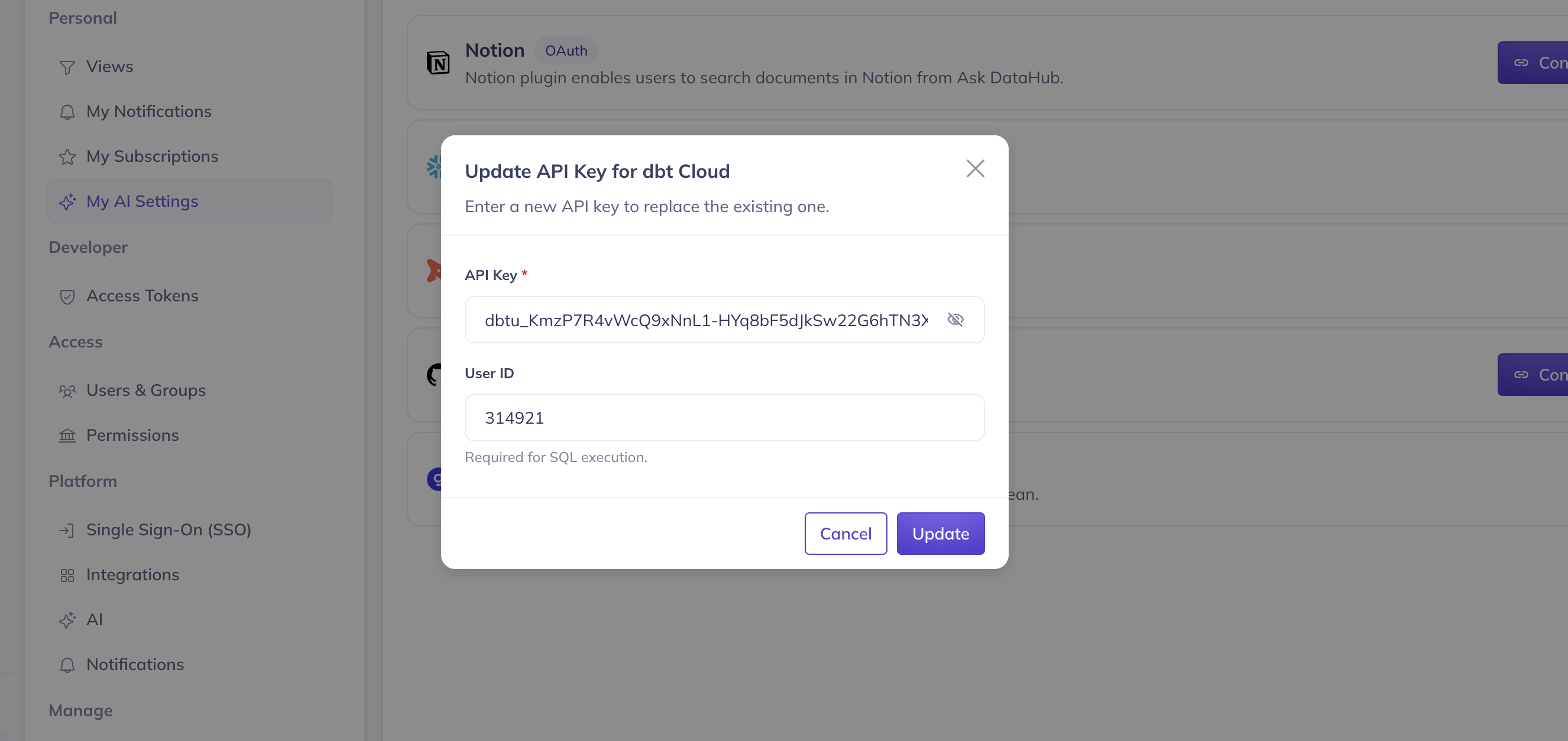
For plugins that require authentication, you'll be prompted to provide your credentials:
Using Plugins in Conversations
Once enabled, plugin tools are seamlessly available during Ask DataHub conversations. Just ask your question and the AI assistant will use the appropriate tools automatically.
Example workflows:
- "What are the most queried tables in Snowflake this month?" — DataHub search + Snowflake query
- "Did the latest dbt run succeed for the revenue model?" — dbt Cloud job history
- "Show me recent changes to the ETL pipeline code" — GitHub commit browsing
- "Find our internal documentation about the data retention policy" — Glean knowledge search